Languages
Starting with EPAS version 1.0.37, support for dynamic languages and overriding existing languages has been implemented. This allows an EPAS administrator to define or override existing language texts with customized versions, depending on the enterprise.
To access this feature, navigate to the Enforcer » Languages menu.
Language listing
In the main page of the Languages page, a listing of all overridden or custom languages is present.
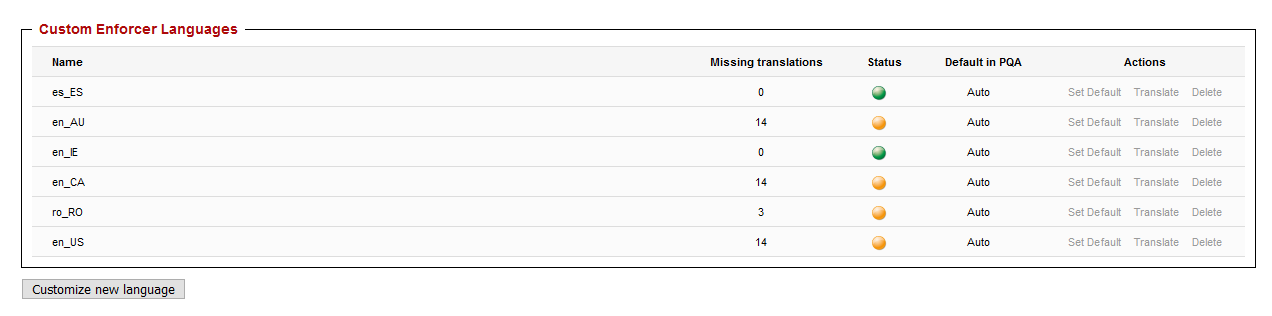
For each custom language, the following fields or actions are present:
- Name: the name and language code of the language, this should correspond to an ISO 2-letter country code, followed by a region code
- Missing translations: the column indicates whether the translation is still up to date with the latest Enforcer version. Whenever EPAS updates are released, new policies might be added which do not have a translation in the customized language. If this field contains values above
0, consider reviewing the translation. - Status: the status correlates directly with the number of missing translations. If the status indicator is not green, consider reviewing the translation.
- Default in PQA: this columns specifies whether any of the overriden languages is the default in the PQA interface (for Enforcer checks). A value of
Automeans the language is automatically selected based on the web browser preferences and language. - Set Default: this action allows setting a default language for the PQA Enforcer policy check page. If this option is enabled, the user must manually select the language in the PQA, if he wishes to switch to another language (not recommended).
- Translate: this option allows customization of the Enforcer messages and any other translatable strings.
- Delete: deletes any custom or overriden language/translation.
Note
Even if a translation status indicator is yellow, the translation is still operational on all AGENTs, only the missing translations would not appear to the end user notification.
Override or customize languages
In order to customize a new language code, or override an existing one, use the Customize new language button present in the listing page.
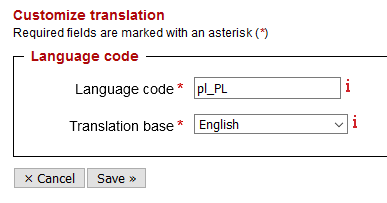
Each customization requires the following parameters:
| Parameter | Description |
|---|---|
| Language code | The language code (and name) of the translation. Use any ISO specific language code and zone/region code (e.g. en_US, pl_PL, fr_FR). If a translation or customization already exists with the same language code, it will be overwritten! |
| Translation base | Select here any of the 5 translations already bundled with Enforcer: en_US, fr_FR, de_DE, it_IT, es_ES. The already translated strings will be imported from this base language. |
Once the parameters have been defined, use the Save action to save the customization.
Info
In order to change the default languages, create a new customization with the same language code (en_US, fr_FR, de_DE, it_IT, or es_ES)
Warning
If a language customization already exists, using the Customize new language feature will overwrite any existing custom translations and repopulate the language with the translation base.
Translation strings
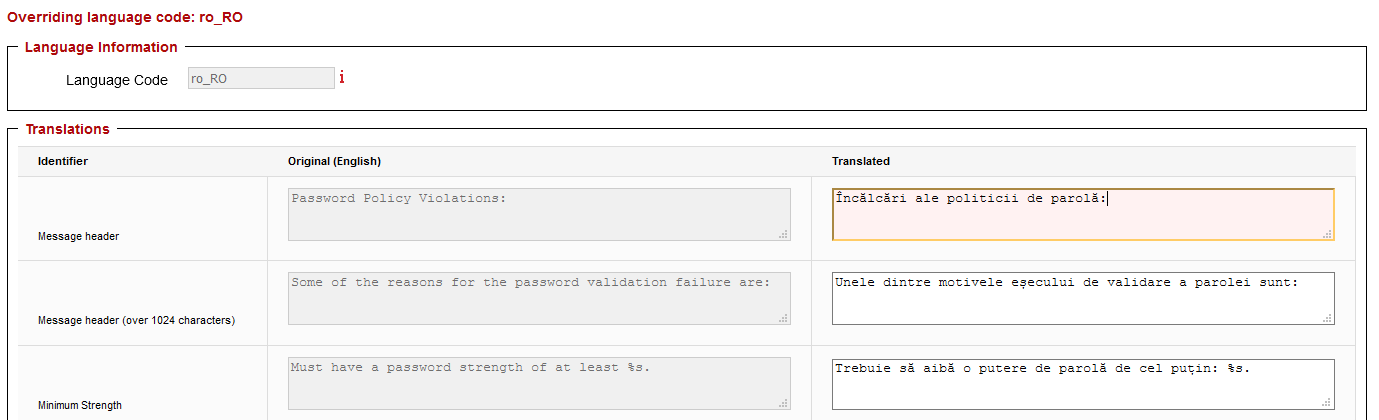
Once a customization has been initially overriden, it is now possible to change the different policy strings and translations, by using the Translate action in the language listing page.
The translation page is composed of a table containing, for each row:
- a label for the string, usually indicating the password policy rule where the translation is used, or alternatively, what it corresponds to
- the original (English) translation of this string
- an editable text box with the translated string
Info
Some translation strings have placeholders (%s) in the original translation. The translated text can omit some or all of the placeholders. However, a translated text MUST NOT have more placeholders than the original string. If using % signs in the translated string, please escape them using another % (e.g. to output Strength is 100%, the translated string should be Strength is %s%%).