E-mail Configuration
EPAS occasionally sends out emails in order to inform administrators or users about the completion of audits, the availability of reports, security incidents and informational emails about the password strength. In order to benefit from the full feature set of EPAS, it is recommended to configure the e-mail delivery and configuration, in the System → Mail Settings page.
SMTP Configuration
EPAS makes use of the SMTP protocol in order to send out emails to the events specified in the previous section. To enable mail sending functionality, as well as configure the parametrization, navigate to the SMTP Configuration tab of the Mail Settings page.
The email is delivered via an external SMTP server, which should be available for the EPAS. Email delivery can be done either authenticated or anonymously, over a plain text protocol such as the standard SMTP protocol, or over SSL / TLS enabled connections.
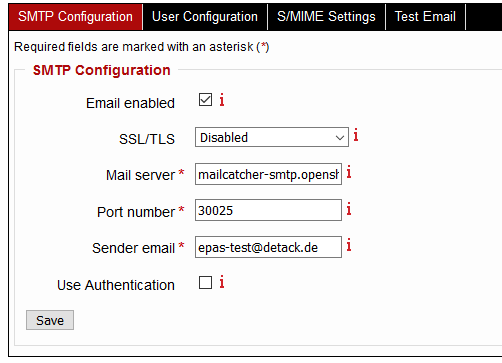
- Enable the email delivery option.
- Select the security features the SMTP server supports. (TLS is recommended)
- Enter the mail server host name or IP address.
Note
In order for email delivery to work with a host name, valid DNS servers must be added in the System → Network Settings page.
- If different from the default values, enter the mail server port number. By default, the port number is
25for plain text communication,587for secure, encrypted communication. - Enter the sender email. This email address will be used by EPAS to send out emails.
- Tick the Use Authentication box if necessary and provide valid SMTP credentials (username and password).
- Once the changes are saved, it is recommended to test the configuration. A test email can be sent via the Test Email tab in order to confirm the SMTP settings are correct.
User Configuration
The user notification message functionality allows EPAS to send out informative emails to user accounts which have been recovered during audit jobs, or which share passwords via the password reuse queries, and satisfy certain conditions. The User Configuration section allows setting up mail templates which are then assigned during the audit job definition process, or the password query definition process.
The User Configuration page is composed of two sections:
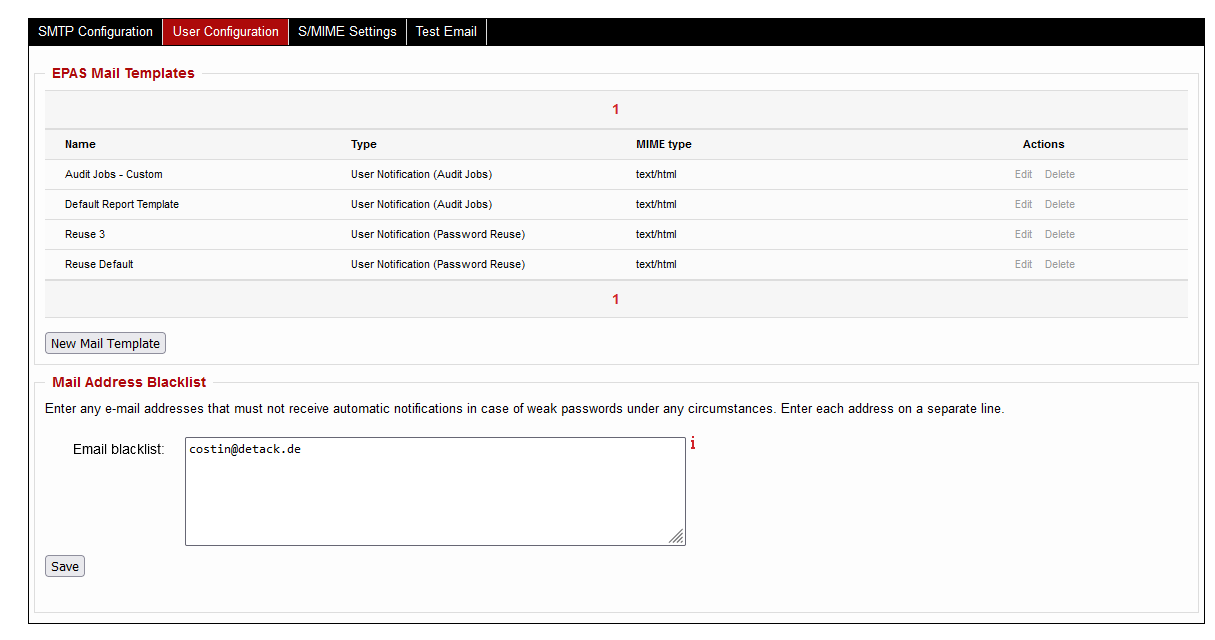
- Mail templates: this section is used to list, create and modify mail templates used for user notification.
- Mail address blacklist: a list of email addresses which should never receive mail from EPAS, regardless of the events triggered by reporting, audit jobs or security conditions. The list is newline delimited.
To customize the notification message that users get by email, navigate to the User Configuration tab in the System → Mail Settings page. Two areas are configurable in the page:
Mail Templates
The section allows an EPAS administrator to list, create and modify mail templates, to be further used in audit jobs and password reuse queries, for the purpose of user notification.
Note
The user notification functionality is available for audit jobs of type Microsoft Active Directory, LDAP directory services, and IBM Lotus Domino, whenever there is an email attribute available in user profiles.
For password reuse queries, this functionality is available for accounts with valid and populated emailAddress attribute on Microsoft Active Directory systems.
To add a new template, use the New Mail Template action in the EPAS Mail Templates page:
- Enter the name of the mail template.
- Enter an optional description.
-
Select the type of mail template. The mail template type cannot be changed through edits. As of EPAS version
1.0.40, the following mail template types are implemented: -
User Notification (Audit Jobs): templates which allow certain dynamic elements to be entered in the template, which relate to the user object in the password audit report.
-
User Notification (Password Reuse): templates which allow certain dynamic elements to be entered in the template, present in the password reuse report.
-
Select the MIME Type of the email content. In general, most email clients support HTML formatted email.
- Enter the Subject of the email. The subject should not contain any dynamic variables.
- Enter the Email Template content. This text field supports dynamic elements, which take information from the notified user object and replaces the placeholders before sending the email. See Placeholders for more information.
- Save the mail template. The template can now be used for notifications in audit jobs and password reuse queries.
Placeholders
This section contains the supported placeholders for support mail template types.
User Notification (Audit Jobs)
For audit jobs, the following elements can be used:
$(USERNAME)- The user name or logon name of the account (e.g. john.doe).$(FULLNAME)- The full name of the user (e.g. John Doe).$(TARGET_NAME)- The name of the target system, as defined in the Targets menu.$(POLICY_STATUS)- The policy compliance status (Yes if account was compliant, No if it failed policy checks).$(SCORE)- The measured password strength of the user account, ranging from 0 ‐ weak to 100 ‐ strong.$(REASON)- The reason why the password was recovered (e.g.SITE_INFO,KNOWN_INFO,DICTIONARY,DICTIONARY_SIM,BRUTE_FORCE, etc.). Additional reasons and their explanation can be found in the section Audit Reports Recovery Reasons.
Example of an email template for audit jobs:
<html>
<body>
Hello $(FULLNAME)
<br/><br/>
The regular password auditing performed automatically by EPAS indicates that you are using a weak password. Please consider changing it.
<br><br>
Your account on $(TARGET_NAME), with the user ID $(USERNAME), has a password rated at $(SCORE)/100. The policy compliance verification status was: $(POLICY_STATUS). The reason was: $(REASON).
<br/><br/>
Kind regards,
Your IT security team
<hr>
Sent by EPAS. <a href="http://www.detack.de">www.detack.de</a>
</body>
</html>
User Notification (Password Reuse)
For password reuse queries, the following elements can be used:
$(USERNAME)- The user name or logon name of the account (e.g. john.doe).$(FULLNAME)- The full name of the user (e.g. John Doe).$(EXTRA)- The user extra text field, corresponding to the dn field.$(USE_COUNT)- The number of accounts (or ocurrences) of this password.$(BEGIN_LOOP)and$(END_LOOP)placeholder in which additional data about the reused credentials is present. Inside of these placeholders, use the$(TARGET_NAME)for the target system where the credential is reused, and$(TARGET_USER_NAME)for the username which shares the same credential (the latter, only available in the All accounts - targets mode)
Example of an email template for password reuse queries:
Hello <strong>$(FULLNAME)</strong>,
<br><br>
Your username <strong>$(USERNAME)</strong> was found to share passwords (a total count of $(USE_COUNT)) on the following system(s):


<br><br><br>
<ul>
$(BEGIN_LOOP)
<li>$(TARGET_NAME) - $(TARGET_USER_NAME)</li>
$(END_LOOP)
</ul>

<br/>br/>
Kind regards,
Your IT security team
<hr>
Sent by EPAS. <a href="http://www.detack.de">www.detack.de</a>
</body>
</html>
Warning
The mail template for the Password Reuse provides the placeholders $(TARGET_NAME) and $(TARGET_USER_NAME) to be used in the reused passwords/accounts loop. Make sure that all privacy risks are analysed before notifying users on which system(s) and which users share the same password, as this can lead to potential security risks.
S/MIME Settings
For all the email notifications described in the current section, EPAS is able to leverage S/MIME certificates to sign emails, to further confirm the authenticity of the message. To configure an S/MIME certificate, navigate to the S/MIME Settings tab, enable mail signatures and upload a valid PKCS#12 file (with the pfx or p12 file extension), while entering the passphrase for the file in the Passphrase field. Save the settings to apply the configuration.
Test Email
Testing facilities are available for sending emails with the defined configuration, under the Test Email tab.