Reporting Options
The reporting options section, located in the main menu at Reports → Reporting Options allows the EPAS administrator to define several settings which affect the overall report generation and other global report operations:
- Definition of Reporting Groups, which allows reporting users to be assigned to the reporting groups; reports or jobs can then be assigned to these groups, granting access to these reports based on reporting group membership.
- Automatic Purge of Report Data allows EPAS administrator to define the maximum retention period for report data, for all report types. Reports older than the defined retention period are automatically removed on their expiration day.
- Compliance Options provides two report generation options which allows password audit report data (web or CSV) to be restricted until a user unlocks it. This allows EPAS customers with stricter compliance rules to monitor, log and access the data only after it has been unlocked.
Reporting Groups
Reporting groups can be created in order to group reporting users and allow fine-grained control over reports. Each job created and its resulting reports, can be assigned to one reporting group. The functionality exists in order to prevent unauthorized access to report data for certain EPAS users.
Once a reporting group has been defined, it can be selected whenever creating a new audit job. Audit jobs created for a certain reporting group will only allow reporting access for the EPAS users defined in the respective group. The default Unrestricted group contains all the EPAS reporting users and is by default selected in the job creation process.
The reporting group management page can be accessed from the Reporting Groups page in the Reports menu.
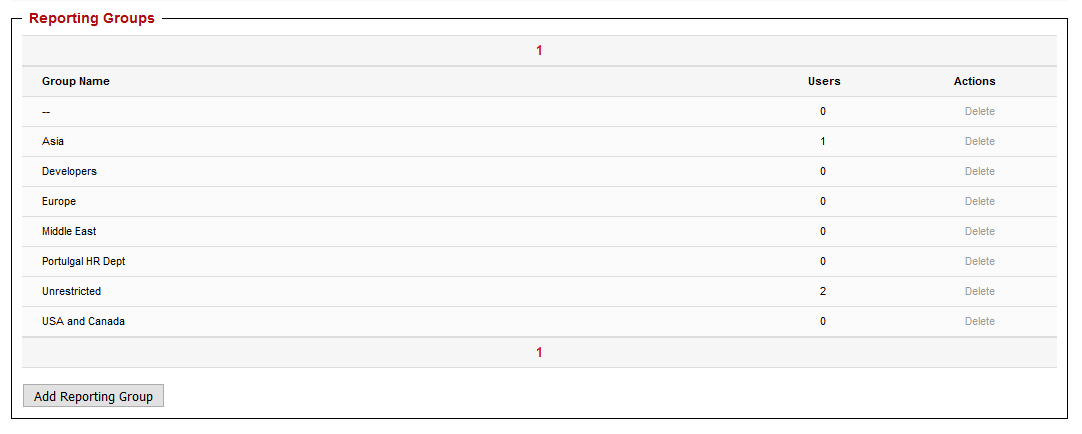
In order to add a reporting group, the following steps must be taken:
- Access the reporting group definition page by clicking the Add Reporting Group button.
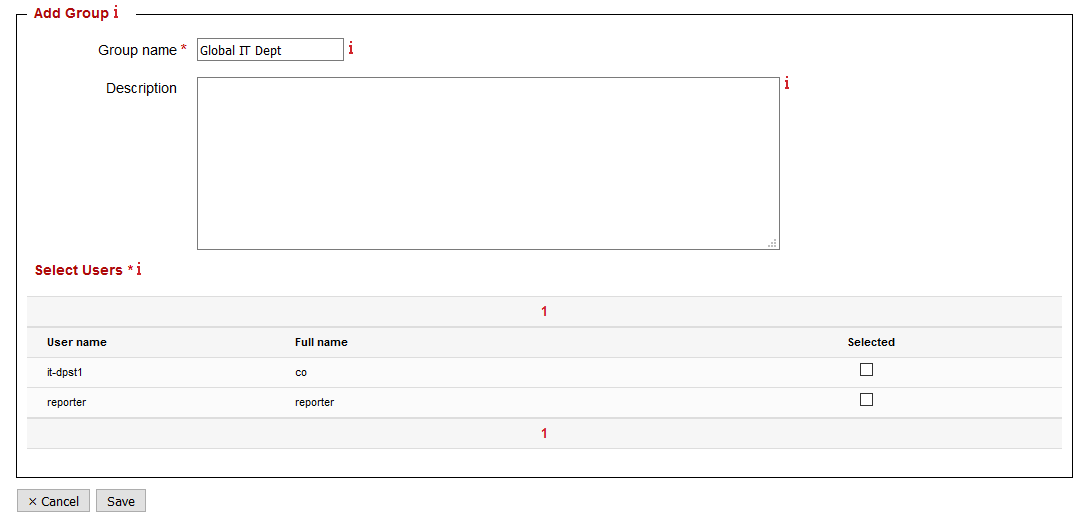
- Enter the group name and group description in the appropriate fields.
- Tick the checkbox for any reporting user that should be included in the aforementioned reporting group.
- Once all the users have been selected, click Save in order to save the reporting group.
Warning
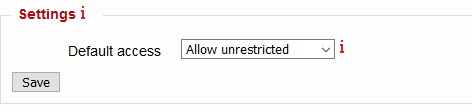
The default Unrestricted reporting group allows any reports not assigned to a particular reporting group to be viewable by ALL reporting users, regardless of reporting group membership. This behavior can be changed by modifying the Default access value to Deny unrestricted, in the Reporting Groups page.
Compliance Options
EPAS enables an administrative user to define two compliance modes, which affect the report generation process. These settings can be defined in the Compliance Options page, located under Reports → Reporting Options → Compliance Options.
The default mode is Standard. This mode does not require any additional configuration and has the following characteristics. Whenever reports are generated (Standard, Reuse or Aggregate), both the Executive Summary and the Password Audit Report Data sections are available and can be used by any user authorized for the report.
The Lock Report Data mode changes the report generation process to restrict (lock) access to the Password Audit Report Data sections, for all report types (Standard, Reuse or Aggregate). In order to access the Password Audit Report Data section, any authorized user needs to complete an additional step which unlocks the report data. This unlock event is logged (permanently), and also triggers email alerts to the defined compliance officers.
To set-up the restricted Lock Report Data compliance mode, use the following workflow:
- Select Lock Report Data as the compliance mode.
-
Optionally, enable E-mail notification for also sending alerts to the compliance officers, whenever:
- A report is unlocked, with the details of the unlock.
- Compliance options are changed, with the details of the change.
-
If notifications are enabled, enter a newline-delimited list of email addresses corresponding to the compliance officers and / or the designated users which should receive the alerts.
Note
The notification feature requires SMTP settings to be operational. Configuration and options for the SMTP (mailing) feature are described in the section E-mail configuration.
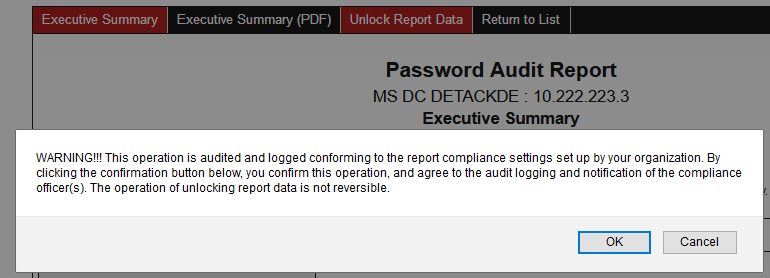
When Lock Report Data mode is enabled, the standard report viewing process is changed. Whenever password audit report data is required, the Unlock Report Data action appears in the top menu.
Clicking the action/button results in the user being prompted whether the operation is confirmed and that compliance actions will be triggered after the action is completed.