Servers
Info
The actions or operations described in this section are performed once, for each distinct server (e.g. NetIQ SSPR server in the same environment).
Each server group object includes a collection of multiple servers. Each server corresponds to one single system handling password change requests. For NetIQ SSPR, this identifies with a single SSPR instance.
Server configuration
For each SSPR instance, it is required to use the New Server button in the Enforcer » Server Groups » Servers page.
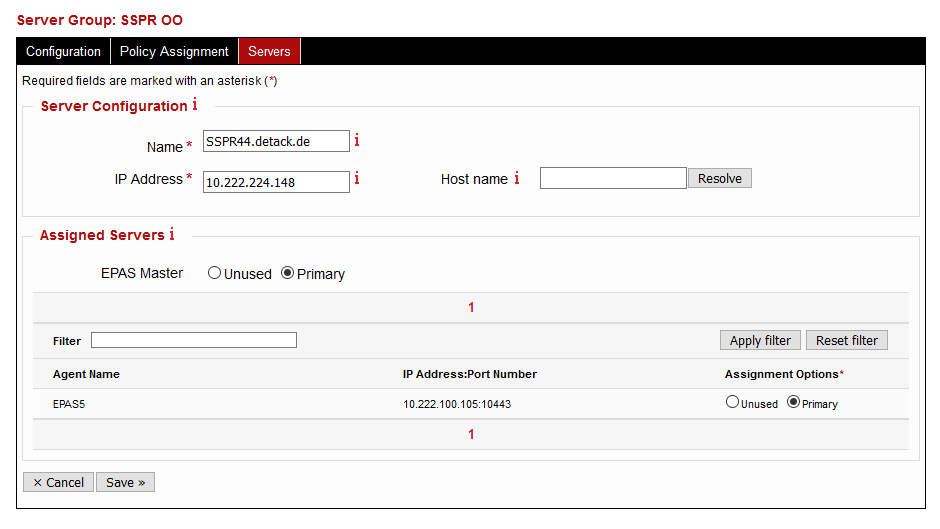
In case editing an already provisioned server, the configuration change(s) take place at the next password change on the system (dynamic). The parameters for the server group configuration are represented in the table below.
| Parameter | Description | Default |
|---|---|---|
| Name | Enter the name of the server being added or edited. It is recommended to use the server name. |
|
| IP Address | Enter the IP address of the server being added or edited. If DNS support is present in EPAS, it is also possible to use the Host name field and then pressing the Resolve button to translate it to an IP address. |
Whenever a password change request happens on the provisioned server, it forwards the password change to any of the EPAS components defined for this particular system. Multiple EPAS components can be used for the purpose of load balancing, high availability and failover. The follow table describes the states present in the Assigned Servers section of the server configuration screen.
| State | Description | Purpose |
|---|---|---|
| Unused | The EPAS component is not in use for Enforcer functionality, on the configured server (NetIQ SSPR). | None |
| Primary | The EPAS component is actively in use for Enforcer functionality, on the configured server (NetIQ SSPR). Any systems in this group are also capable of being load balanced, either by using an external load balancer or DNS round-robing. Load balancing can be implemented in order to distribute password change requests. For productive environments, it is recommended to have at least two EPAS components (MASTER, AGENT) in this state, for each defined server. |
High Availability and Load Balancing |
Warning
It is recommended to perform the load balancing configuration, as described in the Load balancing before performing provisioning.
Load balancing
For EPAS Enforcer integration with NetIQ SSPR, load balancing is performed using external systems, due to the unavailability of load balancing facilities in the SSPR system. external load balancing methods are:
- Using third-party (web) load balancing equipment
- Using DNS round-robin
The current section provides generic information about the load balancing scenario. It is assumed that at least two systems (e.g. 1 MASTER and 1 AGENT) are configured as Primary allocations in the Server configuration section.
The steps required to enable load balancing using a third-party load balancer are:
- Navigate to Enforcer » Settings » Miscellaneous.
- Download the EPAS Enforcer Certification Authority by clicking on the Download Enforcer CA button.
- In the load balancing solution, import the certificate authority, in order to validate all TLS/SSL connections towards the enabled components.
- Add the hostname(s) of the load balancing endpoint (e.g.
enforcer.company.com) in the Load balancing / SAN field and click Save. - Click on the Apply SAN Configuration to propagate the changes in Enforcer.
- Navigate to the Servers page described in the previous documentation section and click on the Provision action.
The following table describes example mappings on the load-balancer and the endpoints, based on the output from the previous point:
| Load Balancer | EPAS Enforcer (Destination) | Description |
|---|---|---|
https://enforcer.company.com/token/<TOKEN>/c |
https://10.222.200.101:10443/token/<TOKEN>/c |
Password Quality Check |
https://enforcer.company.com/token/<TOKEN>/c |
https://10.222.100.105:10443/token/<TOKEN>/c |
Password Quality Check |
https://enforcer.company.com/token/<TOKEN>/n |
https://10.222.200.101:10443/token/<TOKEN>/n |
Password Change Notification |
https://enforcer.company.com/token/<TOKEN>/n |
https://10.222.100.105:10443/token/<TOKEN>/n |
Password Change Notification |
In addition to the productive endpoints, the Enforcer also exposes a health endpoint reporting its status (OK), at the following URL, on each system:
https://10.222.200.101:10443/token/<TOKEN>/health
Provisioning
This section describes the provisioning process, in the NetIQ SSPR Configuration Editor.
Prerequisites:
- A copy of the load balancing certification authority or (if no load balancing is used), a copy of the Enforcer CA.
- The load balancing configuration described in the Load balancing section already performed.
- The steps in the Server configuration section already performed.
Info
- It is assumed that the load balancer hostname is
enforcer.company.com. - For certification authority loading, it is assumed that the virtual appliance from NetIQ SSPR is used.
Importing certification authority
The following steps describe the certificate authority import procedure. This needs to be performed after each software update of the SSPR appliance!
- Download the import.sh script and place it in the
/rootfolder of the SSPR instance, with755permissions. - Place the load balancing certification authority, in PEM format, in the
/ssprConfig/enforcer.crtlocation. - Execute the
import.shscript and, when prompted, typeyesto confirm the certificate import.
The procedure is outlined below:
ssprtest:~/# ./import.sh
[Enforcer] Certificate is present, importing
[Enforcer] Importing certificate into the container store. OUTPUT from container:
Picked up JAVA_TOOL_OPTIONS:
Warning: use -cacerts option to access cacerts keystore
Owner: CN=EPAS-CA-4163-8053-5384-65A2
Issuer: CN=EPAS-CA-4163-8053-5384-65A2
Serial number: 823dca385802375a
Valid from: Wed May 15 10:32:29 GMT 2019 until: Fri Apr 21 10:32:29 GMT 2119
Certificate fingerprints:
         SHA1: 80:22:7C:E4:1C:49:0F:33:A0:90:69:E8:F6:B6:32:0B:FE:28:C8:49
         SHA256: B6:63:2C:E3:55:15:5C:15:51:C6:53:14:8C:13:DB:88:19:D8:36:95:E8:13:38:D0:B6:E2:7B:D4:E9:40:44:49
Signature algorithm name: SHA256withRSA
Subject Public Key Algorithm: 2048-bit RSA key
Version: 3

Extensions:

#1: ObjectId: 2.5.29.35 Criticality=false
AuthorityKeyIdentifier [
KeyIdentifier [
0000: FB E9 63 B4 DA D8 33 CF   08 DB F4 92 BF 8A C4 BC  ..c...3.........
0010: 2F FF D5 2F                                        /../
]
]

#2: ObjectId: 2.5.29.19 Criticality=true
BasicConstraints:[
  CA:true
  PathLen:2147483647
]

#3: ObjectId: 2.5.29.15 Criticality=true
KeyUsage [
  DigitalSignature
  Key_CertSign
  Crl_Sign
]

#4: ObjectId: 2.5.29.14 Criticality=false
SubjectKeyIdentifier [
KeyIdentifier [
0000: FB E9 63 B4 DA D8 33 CF   08 DB F4 92 BF 8A C4 BC  ..c...3.........
0010: 2F FF D5 2F                                        /../
]
]

Trust this certificate? [no]:  yes
Certificate was added to keystore
[Enforcer] Please restart sspr service by using: systemctl restart sspr
SSPR Configuration
This section describes the SSPR configuration. This operation is performed once for each SSPR instance.
- Navigate to the SSPR Configuration Editor and authenticate.
-
For each of the LDAP directories defined in LDAP » LDAP Directories, navigate to the User Attributes section and, in the Web Service User Attributes, add the following attributes:
fullNamenspmPasswordPolicyDN- Any other attributes which should be matched by EPAS in order to enforce different policies (e.g.
accountType)
-
Navigate to Settings » Web Services » REST Clients. In the External Password Check REST Server URLs add a single URL with the following value:
https://enforcer.company.com/token/<TOKEN>/c -
Navigate to Modules » Authenticated » Change Password.
- In the Post Password Change Actions section, use the Add Action to define a new
Enforceraction. Click the Actions button corresponding to the newly added action and Add Web Service Action, with the following parameters:- URL:
https://enforcer.company.com/token/<TOKEN>/n - HTTP Method:
POST - Body:
__EPAS_ENF_USERNAME=@User:ID@__EPAS_ENF_PASSWORD=@User:Password@__EPAS_ENF_OTHER=@LDAP:DN@
- URL:
- Save the SSPR configuration. EPAS Enforcer is provisioned for the SSPR instance.