Password Reuse Queries
Definition
This function can be used to analyze existing targets or reports, in order to identify if accounts in the selected systems are using the same password. In order to obtain a password reuse report, a Password Reuse query has to be defined, by using the New Query button available in the Analyser → Password Reuse menu.
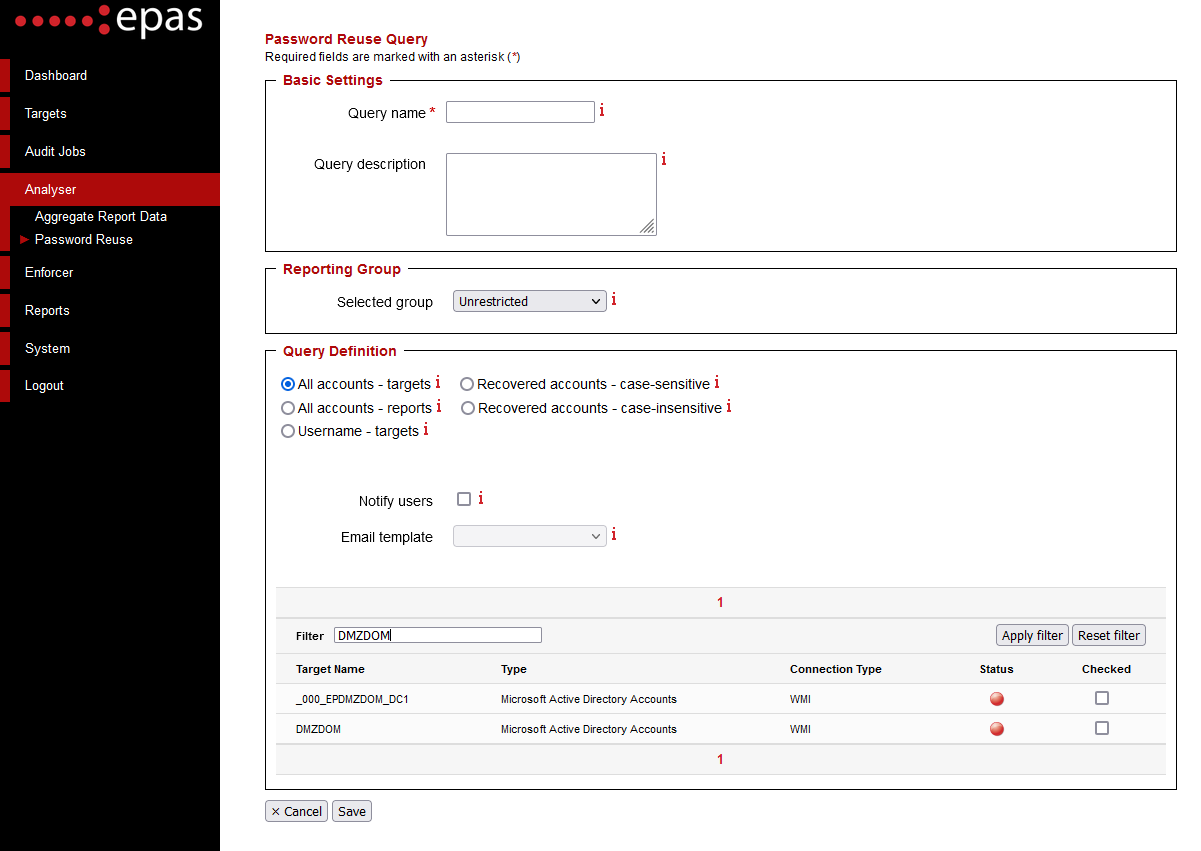
The following actions are required:
- Enter a query name. The name of the query will also be used as the name of the resulting report.
- Enter a query description, such as additional information on the selection, type and scope of the query, in the appropriate field. This information will appear in the report.
- Select a reporting group. Only members of the selected reporting group will have access to the generated report(s).
- In the Query Definition section, select the type of the query. Currently, there are four options available for any password reuse query:
- All accounts - targets: all the users of one or more targets will be compared in order to check if there are any reused passwords between them. This option is only available for all Microsoft Windows target types.
- All accounts - reports: all the users of one or more audit reports will be compared, in order to check if there are any reused passwords between them. The current option also allows the EPAS user to see if users share the same password. The users' passwords will be compared, even if they have not been recovered by the auditing process. This option is only available for audit jobs for Microsoft Windows target types.
- Recovered accounts - case-sensitive: only the recovered users of one or more audit reports will be compared, in order to check if there are any reused passwords between them. Only the users which have been recovered by an audit job will be included in the selection. The selection is case-sensitive, only users sharing the exact same password will be included in the selection. This option is available for audit jobs using any target type.
- Recovered accounts - case-insensitive: only the recovered users of one or more audit reports will be compared, in order to check if there are any reused passwords between them. Only the users which have been recovered by an audit job will be included in the selection. The selection is case-insensitive, users sharing the same password, with different casing, will be included in the selection (e.g.
PaSsWoRdandpasswordwill be regarded as the same password). This option is available for audit jobs using any target type. - Username - targets 1 : all the users of one or more targets will be compared in order to check if identical usernames share passwords across multiple systems – shared passwords among different user names will not be reported, even if they exist. This option is only available for Microsoft Windows target types, where at least one of the targets is an Active Directory type.
- For all target specific queries, an option to notify users and selecting an email template is available and should be enabled if desired 1.
- For all target specific queries, an option to retrieve data is available, which will perform automatic data retrieval from the selected targets, whenever the reuse query is being run. 2.
- After defining the query type, select any reports or targets to be analyzed and Save the query.
For any saved query, click on the Run action available in both the query listing and the query details, after the query has been defined. The query status will turn from yellow to green when the query execution has ended successfully and a password reuse report has been generated.
Note
The user mail notification feature does not guarantee that all accounts which share passwords will be notified. Only accounts with a valid email address present in the Active Directory are eligible for email attempts. For email notification to work, the E-mail Configuration should be correctly performed.
Scheduling
As of EPAS version 1.0.38, it is now possible to automatically schedule Password Reuse Queries to run on a predefined interval.
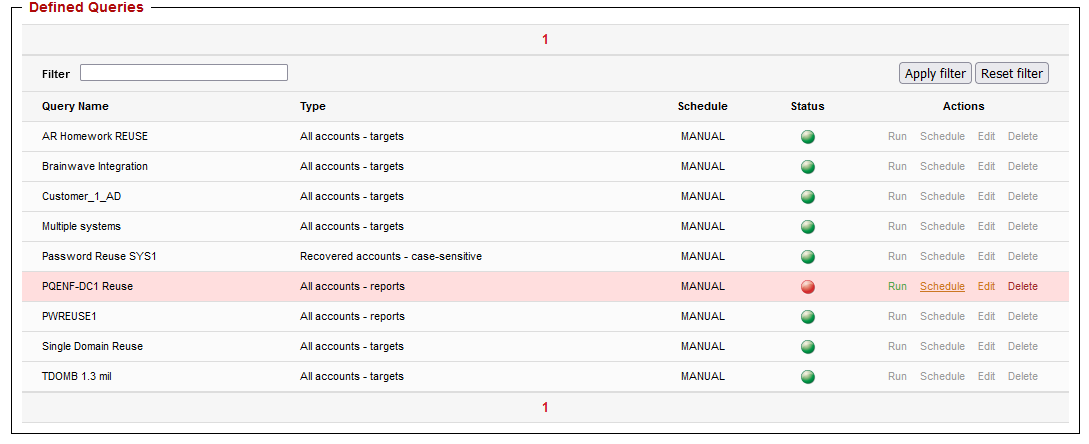
To schedule a password reuse query:
- In the password reuse query list, click the Schedule action.
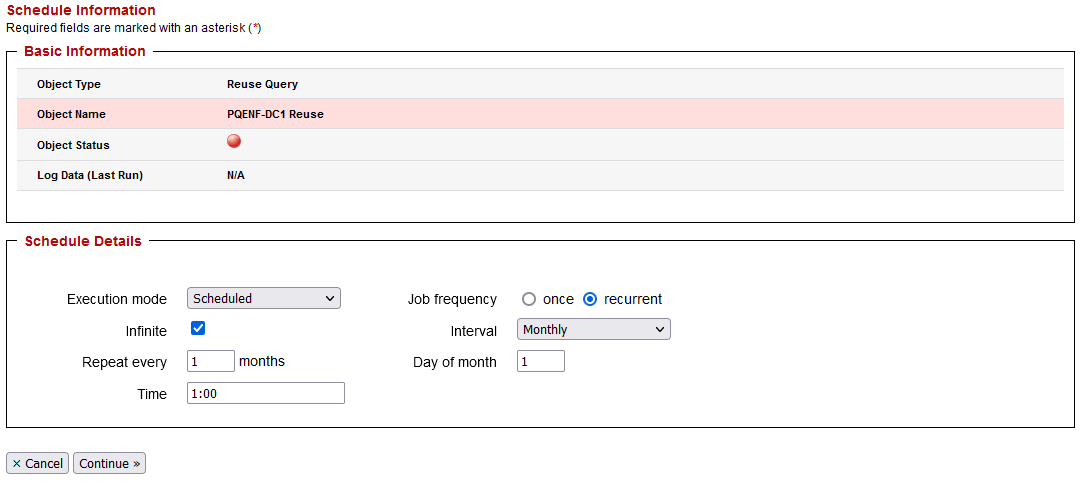
- In the subsequent screen, use the standard scheduling parameters, similar to the scheduling of audit jobs.
- Save the query.
Note
In case the defined query fails with an error during its scheduled runtime, the log data corresponding to the query is available in the detail page of the aggregate query and can be inspected by clicking on any failed scheduled password reuse query in the query list, or by using the Schedule action.