Aggregate Queries
Definition
Aggregate queries are used to merge information from existing reports, in order to aggregate results and obtain cumulative information on multiple audit reports. In order to obtain an aggregated report, a Aggregate query has to be defined, by using the New Query button available in the Analyser → Aggregate Report Data menu.
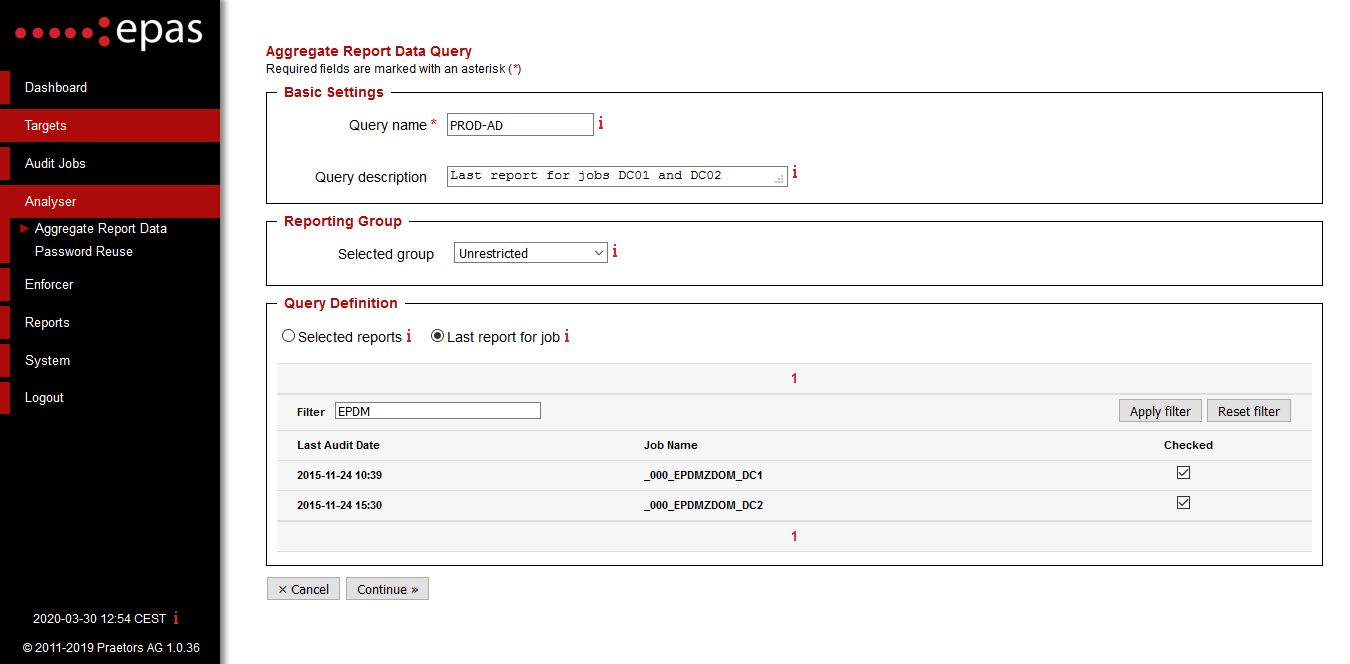
The following actions are required:
- Enter a query name. The name of the query will also be used as the name of the resulting report.
- Enter a query description, such as additional information on the selection, type and scope of the query, in the appropriate field. This information will appear in the report.
- Select a reporting group. Only members of the selected reporting group will have access to the generated report(s).
- In the Query Definition section, select the type of the query. Currently, there are two options available for any password reuse query:
- Selected reports: in the selection list, check any reports that should have their contents aggregated. Only use reports created with EPAS version 1.0.15 and newer for the aggregate function - old reports are not fully compatible with the aggregation queries.
- Last report for job: in the selection list, check any jobs that should have their last available report content aggregated. Only use jobs created with EPAS version 1.0.15 and newer for the aggregate function - old reports are not fully compatible with the aggregation queries.
After the input information has been entered, continue to the next step in order to define the selection criteria.
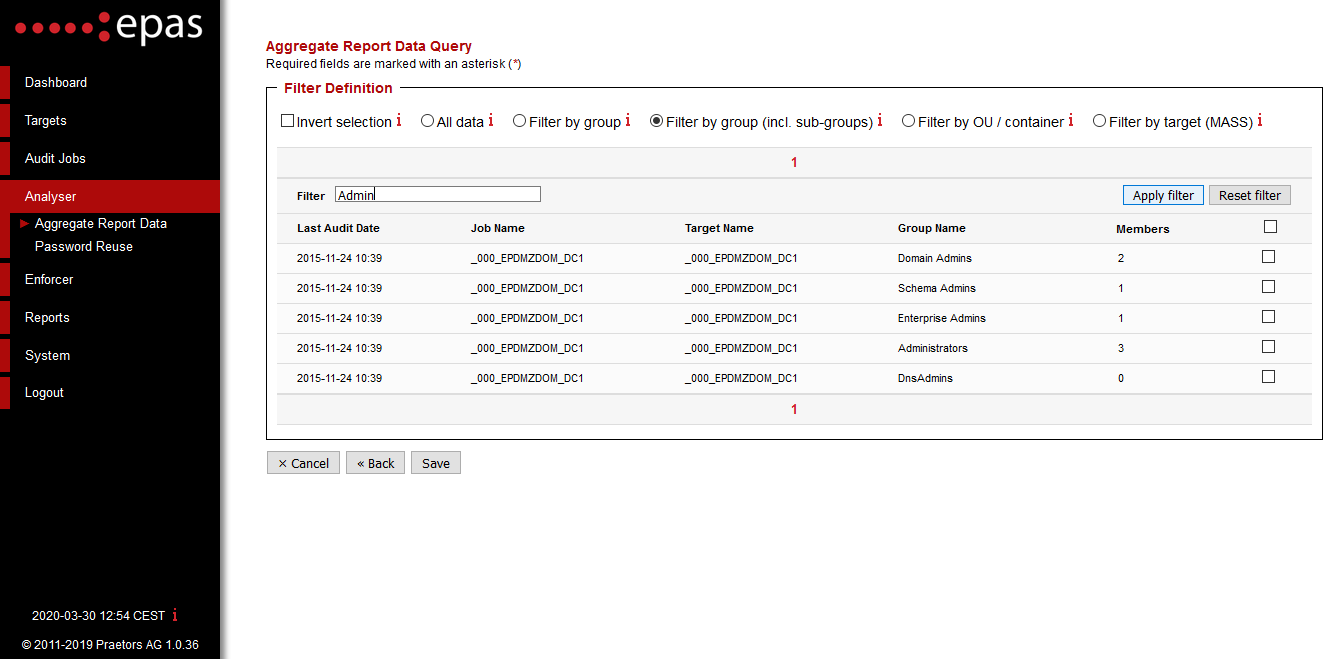
- The next step consists of defining the filter information for the aggregate query. If a Microsoft Active Directory report is included in the query, the data can be filtered by the following criteria:
- All data: all the accounts included in the selection will be included in the report.
- Filter by group: only the accounts included in the checked group names (e.g. Domain Users, Domain Admins) will be included in the query. The filter allows selections on Active Directory and RACF groups. If there are any other reports included in the query, all the accounts will be included in the aggregated report, for that respective report. The current filter does not include subgroup membership.
- Filter by group (incl. sub-groups): only the accounts included in the checked group names (e.g. Domain Users, Domain Admins) will be included in the query - including subgroup membership. The filter allows selections on Active Directory and RACF groups. If there are any other reports included in the query, all the accounts will be included in the aggregated report, for that respective report
- Filter by OU / container: only the accounts belonging to the checked organizational units / containers will be included in the aggregated report. The filter allows selections on Active Directory and LDAP target types. If there are any other reports included in the query, all the accounts will be included in the aggregated report, for that respective report.
For the above selections, the filter criteria can be inverted, by enabling the Invert selection option. When enabled, the group and/or OU/container selection for the A/D targets will be inverted - if Domain Admins is checked, all the users which are in that particular group will be included. If there are any non-A/D reports included in the query, all the accounts will be included in the aggregated report, for that respective report - there is no selection inversion.
- After defining the query type, select any reports or targets to be analyzed and Save the query.
For any saved query, click on the Run action available in both the query listing and the query details, after the query has been defined. The query status will turn from yellow to green when the query execution has ended successfully and an aggregated report has been generated.
Scheduling
As of EPAS version 1.0.38, it is now possible to automatically schedule Aggregate Queries to run on a predefined interval.
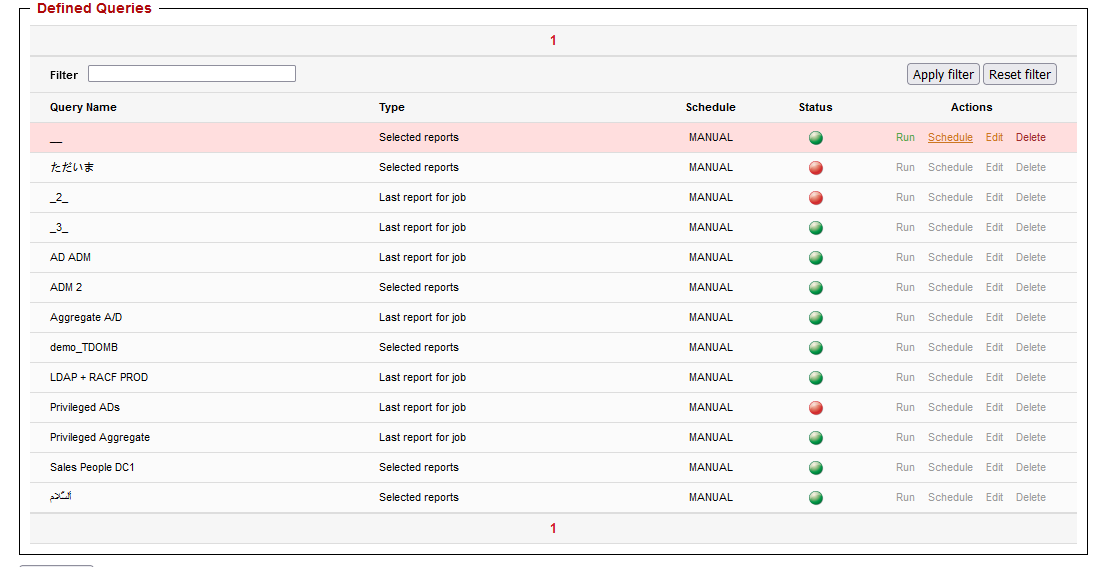
To schedule an aggregate query:
- In the aggregate query list, click the Schedule action.
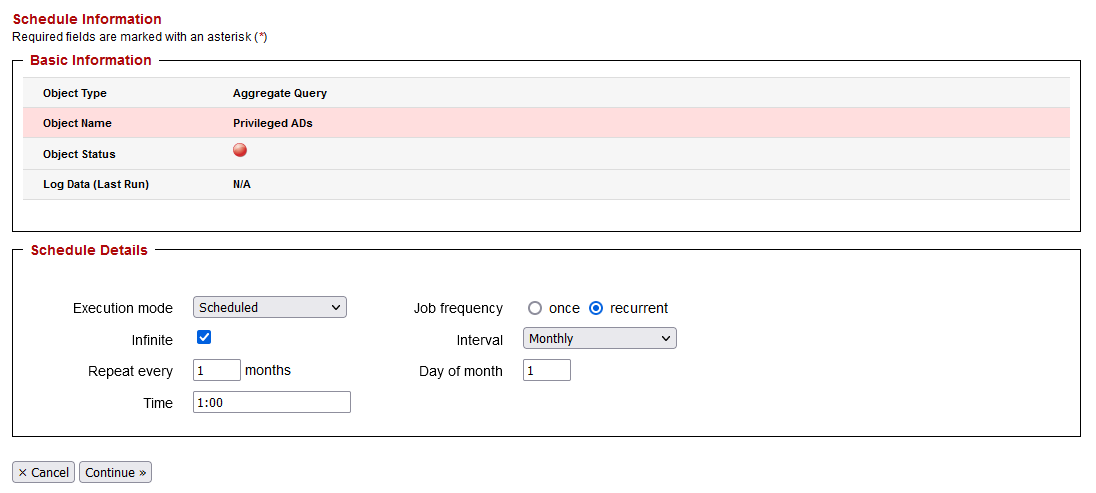
- In the subsequent screen, use the standard scheduling parameters, similar to the scheduling of audit jobs.
- Save the query.
Info
It is recommended to schedule aggregate queries of type Last report for job, and not Selected reports. Scheduled aggregate queries of type Selected reports will always generate the same (identical) aggregate report.
Note
In case the defined query fails with an error during its scheduled runtime, the log data corresponding to the query is available in the detail page of the aggregate query and can be inspected by clicking on any failed scheduled password reuse query in the query list, or by using the Schedule action.