Audit Jobs
Defining Audit Jobs
Once the EPAS system has been configured and target systems have been added, audit jobs should be created. Audit jobs are the core mechanism of the EPAS system. An audit job schedules the password auditing process on a defined target, employing an easy-to-use scheduling mechanism. Only one audit job can run on each worker / EPAS system at any given time. Concurrent jobs are queued, in order to ensure that all scheduled jobs are ran. Once the audit job completes successfully, an audit report is created. Job management is available from the job window, by clicking on a job entry in the job list page.
In order to create an audit job, the following steps are necessary:
- Enter the job definition wizard by clicking the New Job under the Audit Jobs menu.
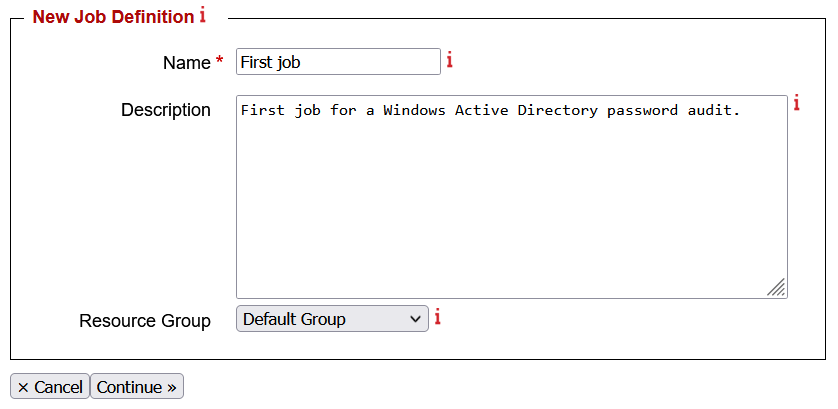
- The first step consists in entering a name for the aforementioned audit job and a general description for the audit job. The optional general description parameter can be used to detail the audit process, target system used, time schedule or any other non-technical data which can help in identifying the audit job. Additionally, a Resource Group can be selected in order to assign the workload of the job to clusters containing chosen EPAS WORKER systems. For further details about this feature, refer to the EPAS Clusters section.
- The next step is used to select a target system to be audited. Select a target system defined earlier.
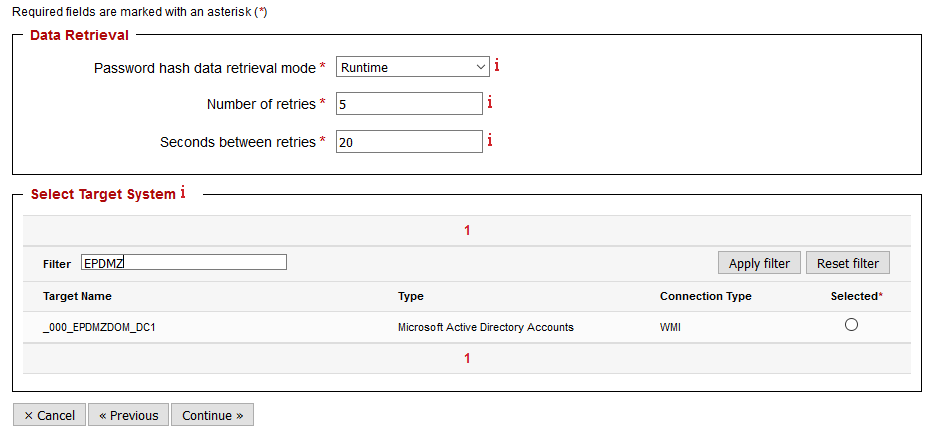
- Select a password hash data retrieval mode. It is possible to create audit jobs that use the initial password data extracted via the retrieval process. If this is the case, set the Password hash data retrieval mode to Cached. Alternatively, set the Runtime value for the Password hash data retrieval mode in order for the audit job to extract fresh profile information from the target system, when it is ran.
- If runtime retrieval was selected, enter the number of retries to attempt for the password data extraction, if the retrieval fails.
- If the runtime retrieval was selected, enter the number of seconds to wait between the data extraction retries.
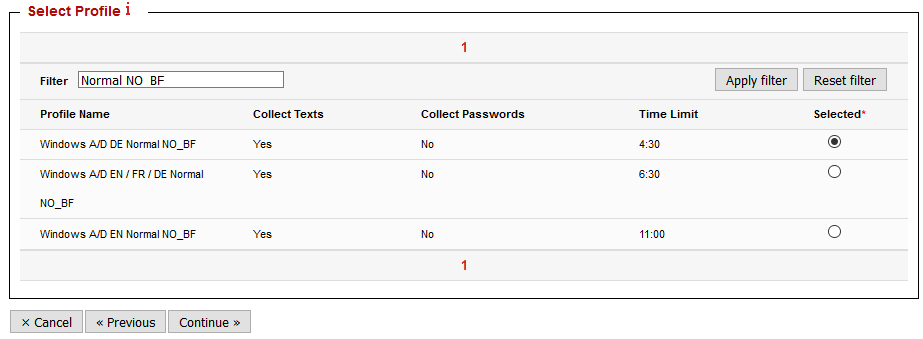
- In the upcoming step, select an audit profile which defines the password auditing options. Auditing profiles can be used to refine the password auditing process. Default, fine-tuned profiles are delivered by default with the EPAS system.
Scheduling Audit Jobs
- Upon landing on the next step of the audit job definition, configure the scheduling of the defined audit job.
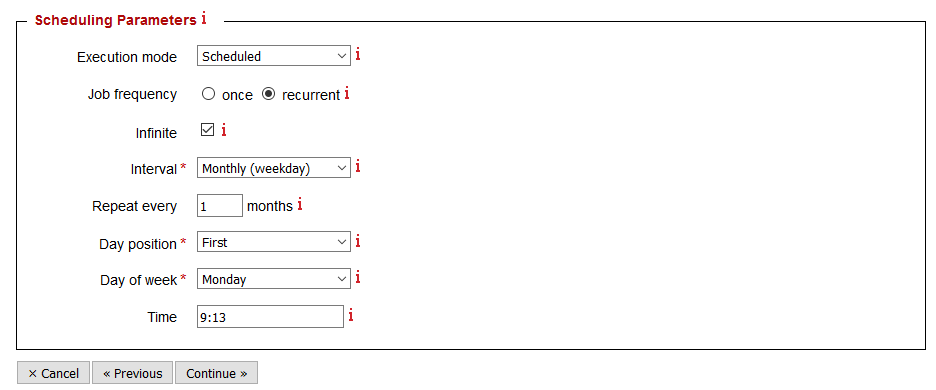
- Select an execution mode. Execution modes currently available are Scheduled and Manual. Manual execution requires no further configuration, the audit job will continue whenever an EPAS administrator starts it manually from the job window.
- If scheduled mode is selected, select a job frequency. Jobs can be scheduled to run once, or repeatedly, on regular time intervals.
- If recurrent frequency is selected, enter the number of runs, the interval (e.g. Daily) and the repeat frequency. Depending on the recurrent period, select the month, day and / or time for the scheduled job.
Reporting Options
The reporting step in the audit job definition process offers several options for the generation of the report following an audit job.
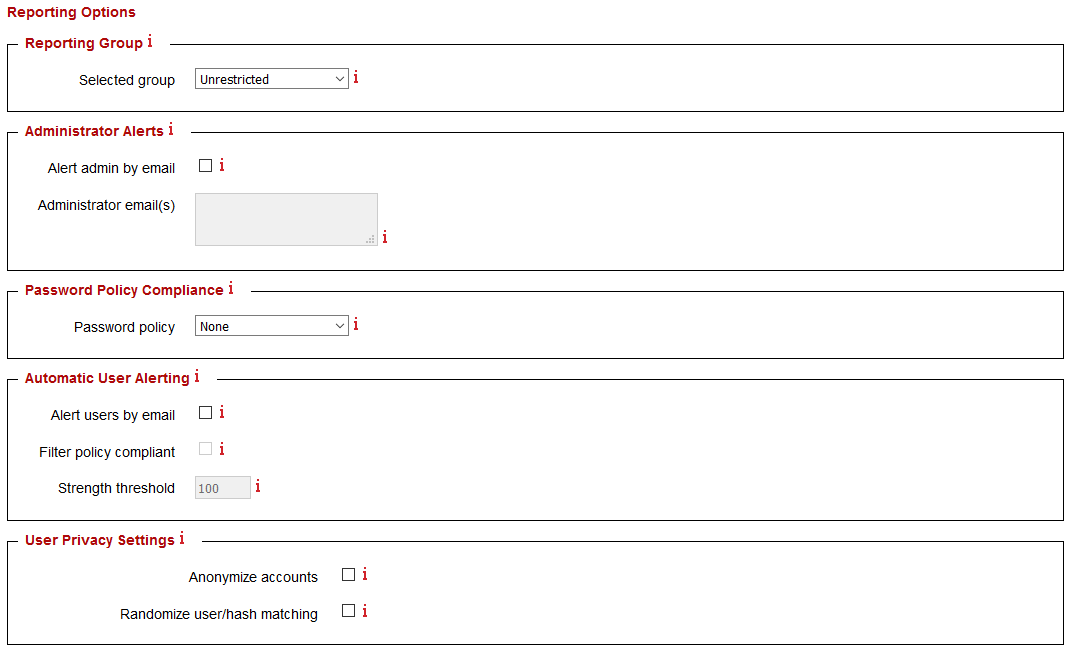
- Select a reporting group. Only members of the selected reporting group will have access to the generated report(s).
- Enable administrator alerts in order to send an email to a specific email address whenever a report is available.
- Select a password policy used to check against recovered passwords. By default, no password policy checking is selected.
- For IBM Lotus Notes and Microsoft® Windows Active Directory, there is the possibility of sending an email to the recovered accounts in order to inform the users that their password is weak. For more information on sending user e-mails, consult the Individual User Notification section.
- An anonymizing option is available, for audit jobs where the name and details of the accounts having weak passwords should not be disclosed. Also, the possibility of randomizing user accounts and password hashes, for statistical purposes, is available.
- If the target system is not a Microsoft® Windows Active Directory target system or a IBM System - zSeries - S/390 target system, the audit job will be created when clicking the Save button.
Privileged Users Auditing - Individual group auditing
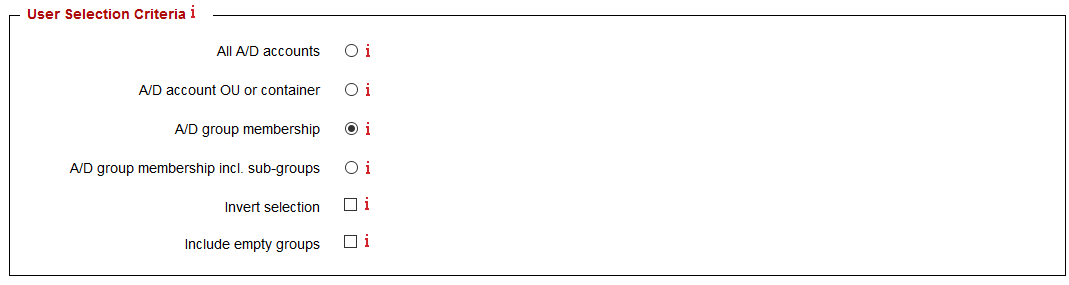
Additionally, for Microsoft® Windows Active Directory, LDAP Directory Services and IBM System z - zSeries - S/390 target systems, a user criteria selection is available, in order to provide the EPAS administrator with fine-grained control over which groups / organizational units are audited. If one of the available user selection criteria is selected, the EPAS administrator is given the possibility to choose the intended groups in the following step of the job definition process.
- Select any groups that should be included in the password audit.
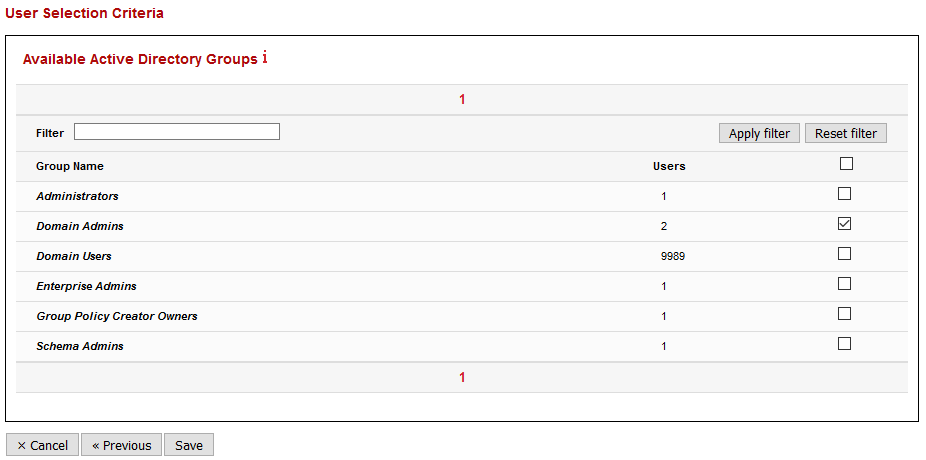
- Clicking Save will create the audit job with the specified parameters.
Individual User Notification
For IBM Lotus Notes and Microsoft® Windows Active Directory, there is the possibility of sending an email to the recovered accounts in order to inform the users that their password is weak. By activating the option, the EPAS will send notifications to all recovered users, or - if the Filter policy compliant option is enabled in the audit job configuration - to those users who had their password recovered, but did not comply with the selected password policy.
Note
E-mails will be sent only to those user accounts that have a valid mail address defined in the Active Directory database.
Additionally, in order for the users to receive notifications, a valid SMTP server configuration must be configured in the System → Mail Settings area. The figure below illustrates an example configuration:
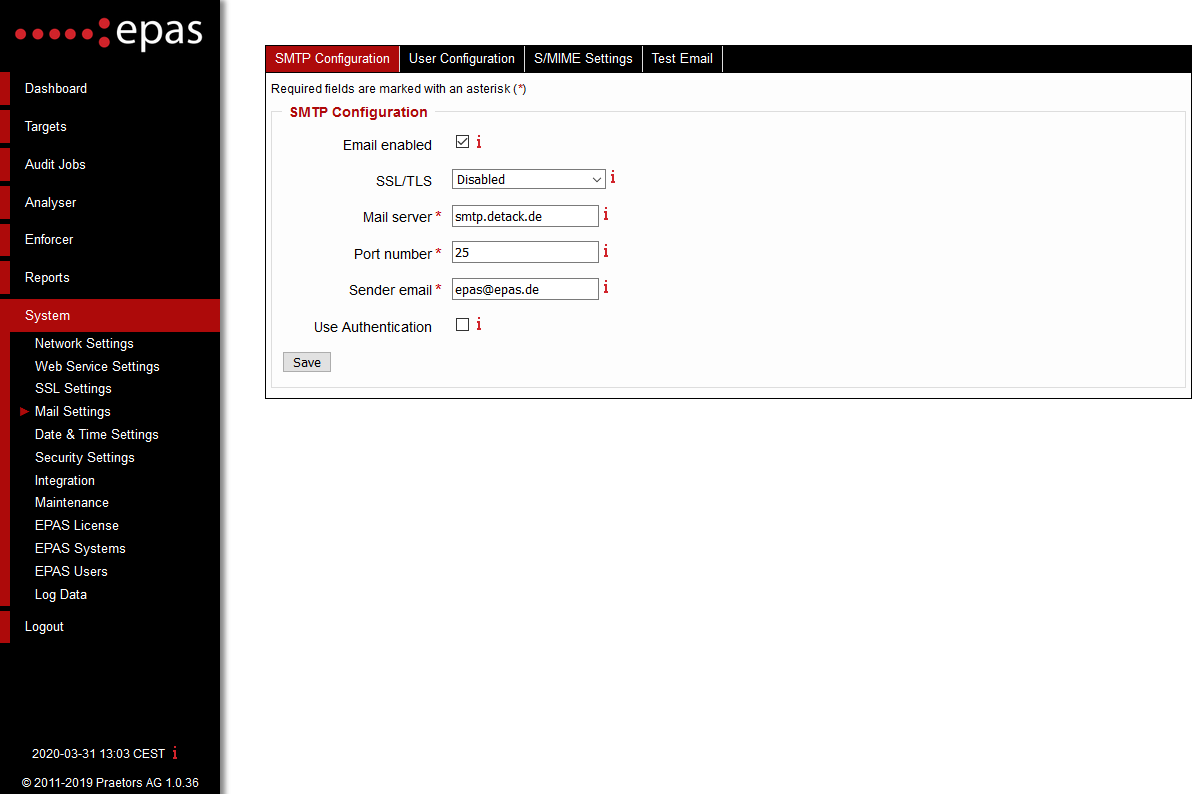
- After clicking Save, test the current SMTP configuration by sending a test e-mail to the entered recipient.
The second requirement when sending notification e-mails to users is defined by configuring the e-mail template. The e-mail template can be configured by navigating to the User Configuration tab in the System → Mail Settings page.
- Enter an email subject, this will be the subject of the message sent to all the users.
- Enter an email body. This value will contain the message sent to the user in order to notify the users about a weak / recovered password. The email body field, can contain HTML elements, in order to adapt the email template to any corporate requirements (adding a company logo or other elements from the corporate design). In addition, the email body can contain several "individual fields" - these fields will be replaced by their representation on each notification:
$(USERNAME)- will be replaced by the username.$(FULLNAME)- will be replaced by the full name of the user.$(TARGET_NAME)- will be replaced by the target system's name.$(POLICY_STATUS)- will be replaced by the policy compliance status, if a policy was selected.$(SCORE)- will be replaced by the password strength of the recovered account.$(REASON)- will be replaced by the reason why the password was recovered (e.g.SITE_INFO,KNOWN_INFO,DICTIONARY,DICTIONARY_SIM,BRUTE_FORCE, etc.). Additional reasons and their explanation can be found in the section Audit Reports Recovery Reasons.
- Enter any email addresses that should never receive emails from EPAS, in the email blacklist field.
- Save the settings in order to apply the changes.
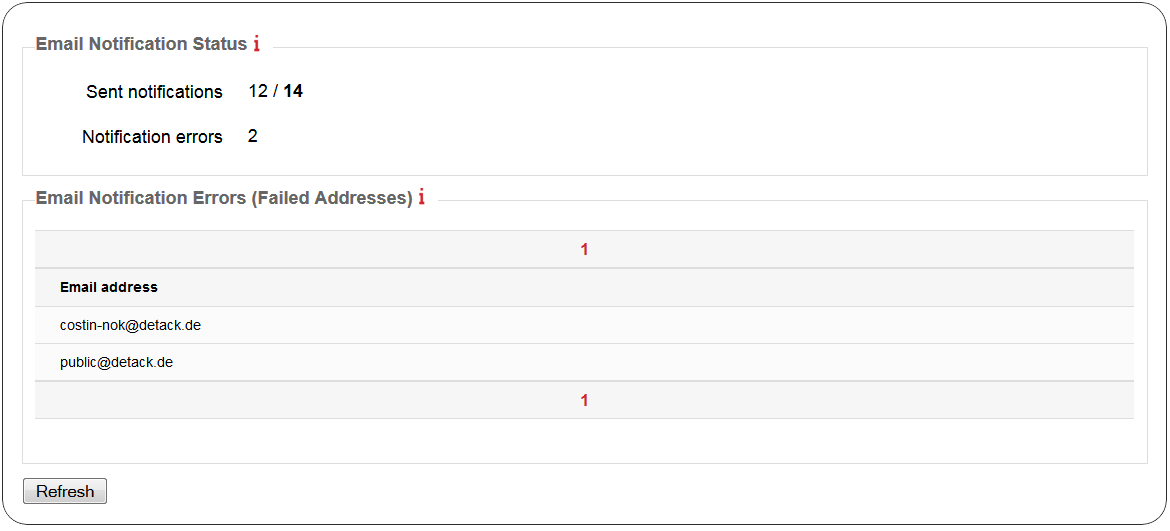
If the above configuration is correctly performed, each job that is configured to notify users will also contain an Email Notification Status section, in the corresponding report. An example is illustrated below.