User Management
The user management section, available at the System » EPAS Users page allows the definition and management of two types of EPAS access:
- Management console (Web) users
- API clients
Web Users
The user management section is available on the EPAS Users page in the System menu. The current user hierarchy is divided into 6 types of users: administrators, full access reporting users, executive reporting users, target users, full Enforcer access and log viewers for Enforcer. The user management page is structured in order to provide easy control of the EPAS users.
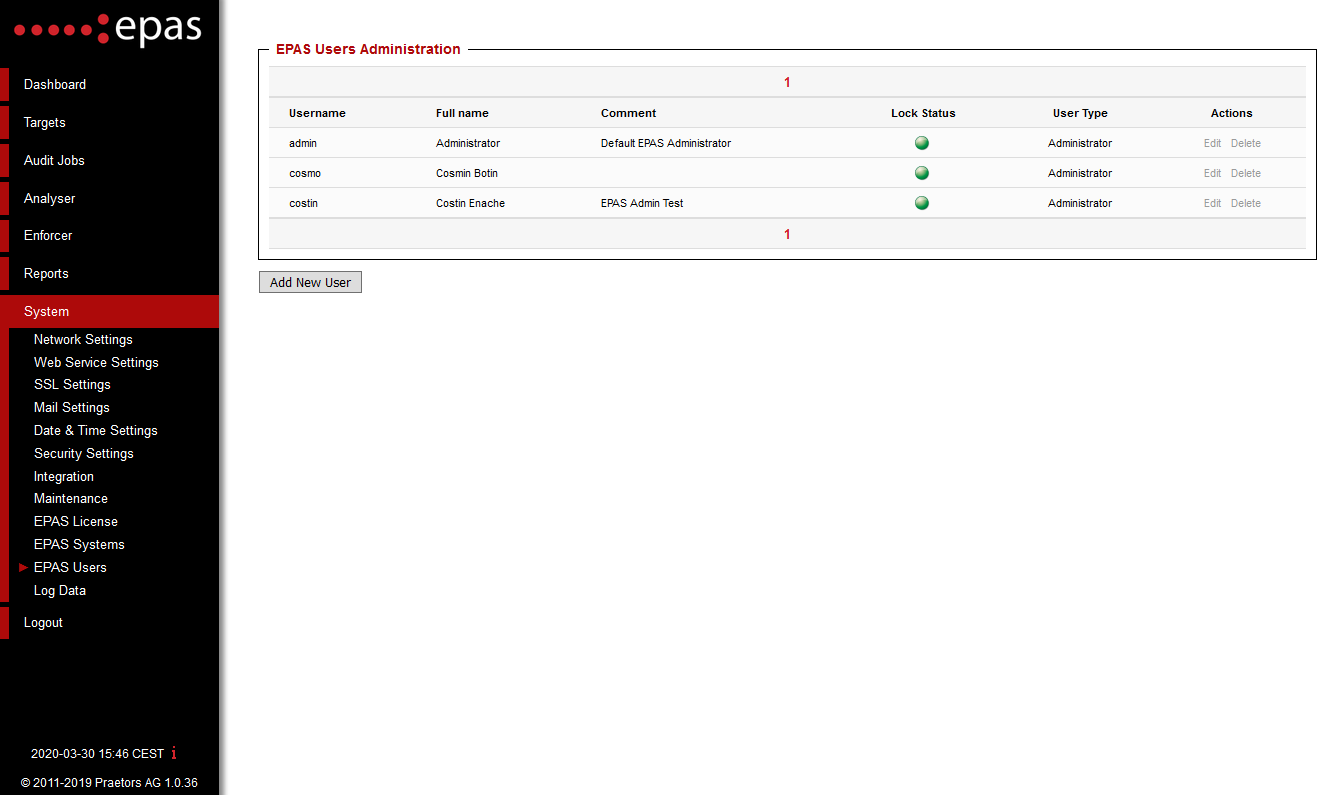
The user management section provides the following functionality: add, edit or delete users to the EPAS system. In order to add a new user to EPAS, the Add New User button is clicked, leading to the user definition page.
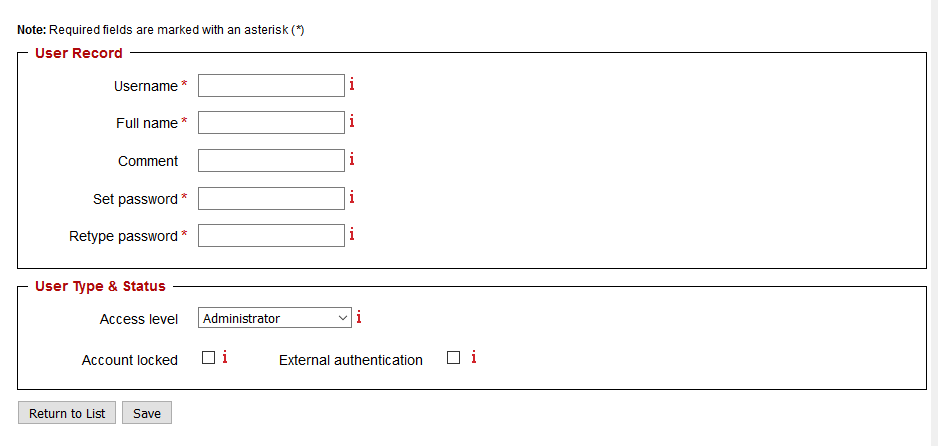
In order to add a new user to EPAS, follow these steps:
- Enter the user name in the Username field. A username should not contain spaces or special characters.
- Enter the full name of the user.
- If applicable, add a comment to the user.
-
Type the password for the user and confirm it in the next field.
Note
Passwords must comply with the EPAS users' password policy, defined in the System → Security Settings page, outlined in the section Local Security.
-
Select the user access level. Four types of access levels exist:
- Administrator: the role allows a user to use the full functionality of EPAS
- Reporting - Full: the role provides access for full report information including recovered accounts data.
- Reporting - Executive: the role provides access only to the executive summary of each audit report.
- Targets: the role provides view, creation, modification and retrieval rights for target systems defined in the EPAS. No other functionality is enabled in this role.
- Password Quality Enforcement: the role provides access to the password quality enforcement functionality, if such functionality is enabled.
-
Select the account state. All accounts can be individually locked by an EPAS administrator via this setting.
- If the account is to be used with external authentication methods, enabled in the Security Settings submenu, tick the corresponding checkbox in order to enable this functionality for the desired user.
- Once all the required data has been added, click the Save button to apply the changes and propagate them throughout the system.
The edit page for a user provides the same functionality as the user definition page. EPAS users can be deleted from the service by clicking the Delete button located next to each user entry in the user management page.
API clients
The API clients page, in the EPAS Users menu, is described at EPAS API » Authentication and Authorization.