Servers
Info
The actions or operations described in this section are performed once, for each distinct server (e.g. Linux system).
Each server group object includes a collection of multiple servers. Each server corresponds to one single system handling password change requests. For Linux, this identifies with a single machine/system.
Server configuration
For each Linux system, it is required to use the New Server button in the Enforcer » Server Groups » Servers page.
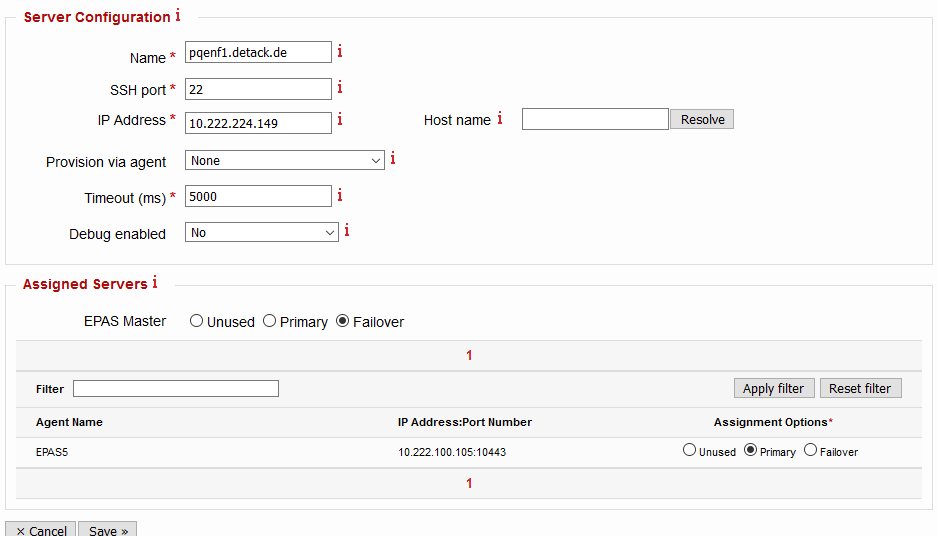
In case editing an already provisioned server, the configuration change(s) take place at the next password change on the system (dynamic). The parameters for the server configuration are represented in the table below.
| Parameter | Description | Default |
|---|---|---|
| Name | Enter the name of the server being added or edited. It is recommended to use the server name. |
|
| SSH port | Enter the port number of the SSH service running on the server being added or edited. If DNS support is present in EPAS, it is also possible to use the Host name field and then pressing the Resolve button to translate it to an IP address. |
22 |
| IP Address | Enter the IP address of the server being added or edited. If DNS support is present in EPAS, it is also possible to use the Host name field and then pressing the Resolve button to translate it to an IP address. |
|
| Provision via agent | Defines the EPAS system which performs the provisioning process, when the operation is initiated. AGENTs can also be used for provisioning, as long as the rules marked as For provisioning in the Network Requirements exist. | None (EPAS MASTER performs the provisioning) |
| Timeout | In case password change requests do not reach the EPAS components (AGENT, MASTER): The timeout in miliseconds (ms) after which the Enforcer password filter attempts to connect to the next defined EPAS AGENT or MASTER defined in the Assigned Servers section. It is recommended to use a value between 2000 and 5000 ms, depending on the peering between EPAS MASTER or EPAS AGENTS and the defined server. |
5000 |
| Debug enabled | Defines whether additional debug information is shown provisioned system, during password change requests. Use this parameter only in development, test and acceptance scenarios, or whenever debugging the PAM modules. |
No |
Whenever a password change request happens on the provisioned server, it forwards the password change to any of the EPAS components defined for this particular system. Multiple EPAS components can be used for the purpose of load balancing, high availability and failover. The follow table describes the states present in the Assigned Servers section of the server configuration screen.
| State | Description | Purpose |
|---|---|---|
| Unused | The EPAS component is not in use for Enforcer functionality, on the configured server. | None |
| Primary | The EPAS component is actively in use for Enforcer functionality, on the configured server. Any systems in this group are also load balanced using a round robin algorithm, in order to distribute password change requests. For productive environments, it is recommended to have at least two EPAS components (MASTER, AGENT) in this state, for each defined server. |
High Availability and Load Balancing |
| Failover | The EPAS component is in use for Enforcer functionality, only when no other components are reachable from the Primary group. Use this state for the EPAS MASTER, when possible, or for any EPAS AGENTS that are located in too remote network segments (high latency). |
Failover/fallback |
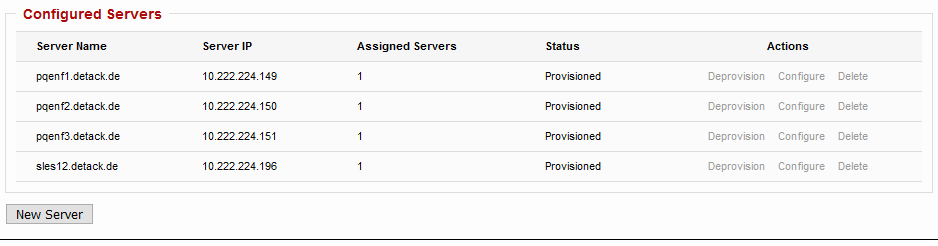
Once the settings are saved, the system should appear in the Servers page, with the status of Unprovisioned. Any edits performed on the Unprovisioned servers have no effect on the systems. Any edits performed on the Provisioned servers take effect on the next password change.
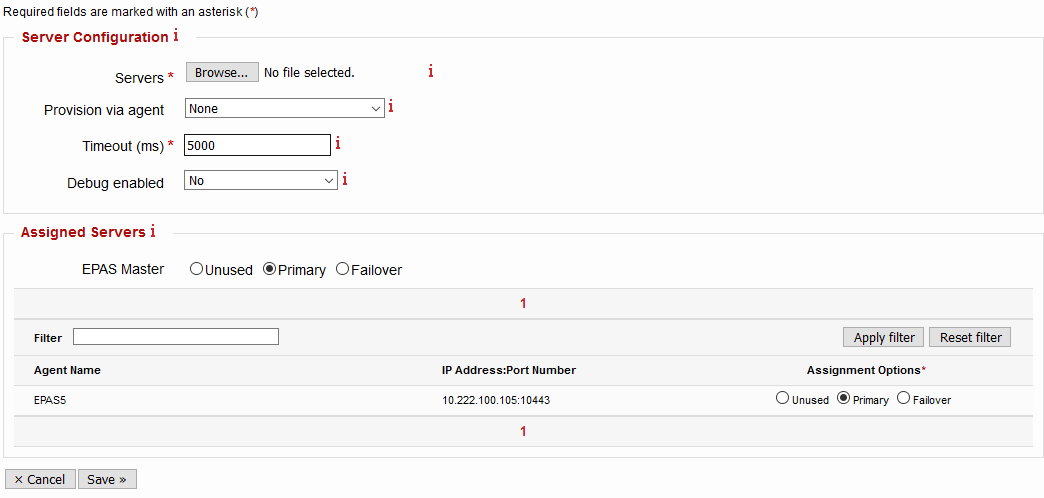
Server configuration (multiple systems)
It is also possible to use a Tab-separated values file to define multiple servers at once, with common configuration parameters (provision via agent, timeout, debug enabled, load balancing configuration). The function is available by pressing the Add Multiple Servers button. Upload a TSV file containing the system parameters, and set the common ones.
The format of the TSV file is (replace <TAB> by real tab character):
SYSTEM_NAME<TAB>SYSTEM_IP<TAB>SSH_PORT
The SYSTEM_NAME and SYSTEM_IP values need to be unique, independently, across the entire Enforcer installation.
Optional: SUDO access
If provisioning of the system is to be done without access to the root account or equivalent, then sudo access must be configured. To achieve this, edit the /etc/sudoers file to include the following lines (replace <service account> with the account performing the provisioning):
Defaults!/opt/epas/enf_sudo.sh !requiretty
<service account> ALL=NOPASSWD:/opt/epas/enf_sudo.sh
Create a /opt/epas/enf_sudo.sh file, owned by root, with permissions 755 and the following content:
#!/bin/sh
"${@}"
The script and corresponding sudoers entries can be deleted after provisioning and/or deprovisioning, they are not used in other functionality.
Provisioning
The provisioning action is used once per server, and performs the following actions:
- Connects to the server using the credentials specified in the Server Groups configuration page.
- Transfers the PAM module to the target system, in the
/opt/epas/pam_epas_enforcer.solocation. - Generates an RSA 2048 bit private key and corresponding certificate which are transferred on the system, in the
/opt/epas/ssl/. - Transfers a dynamic configuration file to the
/opt/epas/enforcer.conflocation. - If SELinux is enabled and enforced, allows the EPAS Enforcer PAM module to communicate to the Enforcer components and to write its configuration.
- Changes existing PAM configuration in the
/etc/pam.d/location, adding the EPAS Enforcer PAM provider in all locations wherepam_unix.soauthentication is used.
To provision a server, use the Provision action in the Servers page. The provisioning window displays log data about the state of the provisioning process, and whether provisioning has succeeded. Below is an example provisioning log:
Info: Mon Oct 28 16:17:08 CET 2019
Info: Using SSH transfer ...
Info: The target is 64-bit...
Info: SSH public key verification data for 10.222.221.239:
-----------------------------------------------------------------------------
256 SHA256:Gfq6Qs6wwHlmkn0MrPdwJMnV6cV2Lst/mOVUgFhjrRY 10.222.221.239 (ECDSA)
-----------------------------------------------------------------------------
Info: Getting SELINUX status...
Info: Preparing enrollment data...
Info: Operation completed successfully

The provisioning has PASSED.
Provisioning multiple servers can be done using the Provision All action in the Servers page.
Deprovisioning
The deprovisioning operation performs all the necessary steps in order to uninstall the Enforcer PAM module from a Linux server. At the end of the deprovisioning process, the PAM module and any associated configuration is delete, the certificates removed. The PAM module is also unloaded from /etc/pam.d, any configuration is unloaded, and certificates removed.
To deprovision a server, use the Deprovision action in the Servers page. The deprovisioning window displays log data about the state of the deprovisioning process, and whether deprovisioning has succeeded. Below is an example log:
Info: Mon Oct 28 16:16:41 CET 2019
Info: Using SSH transfer ...
Info: The target is 64-bit...
Info: SSH public key verification data for 10.222.221.239:
-----------------------------------------------------------------------------
256 SHA256:Gfq6Qs6wwHlmkn0MrPdwJMnV6cV2Lst/mOVUgFhjrRY 10.222.221.239 (ECDSA)
-----------------------------------------------------------------------------
Info: Preparing unenrollment data...
Info: Operation completed successfully

The deprovisioning has PASSED.
Deprovisioning multiple servers can be done using the Deprovision All action in the Servers page.