Servers
Info
The actions or operations described in this section are performed once, for each distinct server (e.g. Windows operating system).
Each server group object includes a collection of multiple servers. Each server corresponds to one single system handling password change requests. For Windows Local Accounts, this identifies with a single Windows local operating system installation.
Server configuration
Info
All the configuration performed whenever adding or editing an Unprovisioned server has no effects on the systems that are being configured. Active configuration changes or any actions on the systems is performed only during provisioning, or after provisioning the server.
It is therefore recommended to perform all initial configuration of the server(s) before the provisioning process, in order to avoid active configuration changes on the target systems.
For each Windows operating system (local accounts), it is required to use the New Server button in the Enforcer » Server Groups » Servers page.
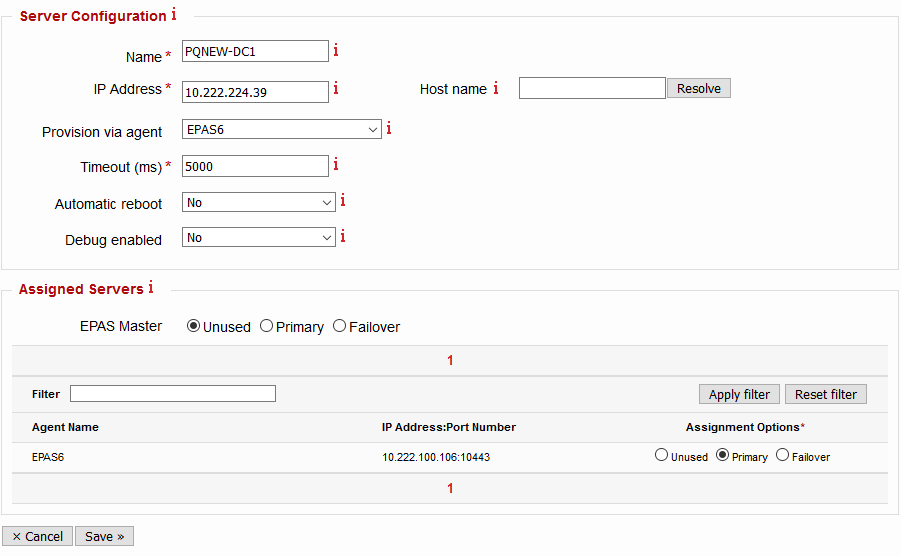
In case editing an already provisioned server, the configuration change(s) take place at the next password change on the system (dynamic). The parameters for the server configuration are represented in the table below.
| Parameter | Description | Default |
|---|---|---|
| Name | Enter the name of the server being added or edited. It is recommended to use the server name. |
|
| IP Address | Enter the IP address of the server being added or edited. If DNS support is present in EPAS, it is also possible to use the Host name field and then pressing the Resolve button to translate it to an IP address. |
|
| Provision via agent | Defines the EPAS system which performs the provisioning process, when the operation is initiated. AGENTs can also be used for provisioning, as long as the rules marked as For provisioning in the Network Requirements exist. | None (EPAS MASTER performs the provisioning) |
| Timeout | In case password change requests do not reach the EPAS components (AGENT, MASTER): The timeout in miliseconds (ms) after which the Enforcer password filter attempts to connect to the next defined EPAS AGENT or MASTER defined in the Assigned Servers section. It is recommended to use a value between 2000 and 5000 ms, depending on the peering between EPAS MASTER or EPAS AGENTS and the defined server. |
5000 |
| Automatic reboot | Defines whether the provisioning process should perform an automatic reboot of the system after a succesful provisioning or deprovisioning action. It is recommended to enable this flag in development, test and acceptance scenarios. For productive system(s), use Yes and manually perform a reboot of the system after provisioning or deprovisioning. |
No |
| Debug enabled | Defines whether additional debug information is logged on the provisioned system, in the Event Log. Use this parameter only in development, test and acceptance scenarios, or whenever debugging the password filter (or loadable modules) components. |
No |
Whenever a password change request happens on the provisioned server, it forwards the password change to any of the EPAS components defined for this particular system. Multiple EPAS components can be used for the purpose of load balancing, high availability and failover. The follow table describes the states present in the Assigned Servers section of the server configuration screen.
| State | Description | Purpose |
|---|---|---|
| Unused | The EPAS component is not in use for Enforcer functionality, on the configured server. | None |
| Primary | The EPAS component is actively in use for Enforcer functionality, on the configured server. Any systems in this group are also load balanced using a round robin algorithm, in order to distribute password change requests. For productive environments, it is recommended to have at least two EPAS components (MASTER, AGENT) in this state, for each defined server. |
High Availability and Load Balancing |
| Failover | The EPAS component is in use for Enforcer functionality, only when no other components are reachable from the Primary group. Use this state for the EPAS MASTER, when possible, or for any EPAS AGENTS that are located in too remote network segments (high latency). |
Failover/fallback |
Once the settings are saved, the system should appear in the Servers page, with the status of Unprovisioned. Any edits performed on the Unprovisioned servers have no effect on the systems. Any edits performed on the Provisioned servers take effect on the next password change.

Server configuration (multiple systems)
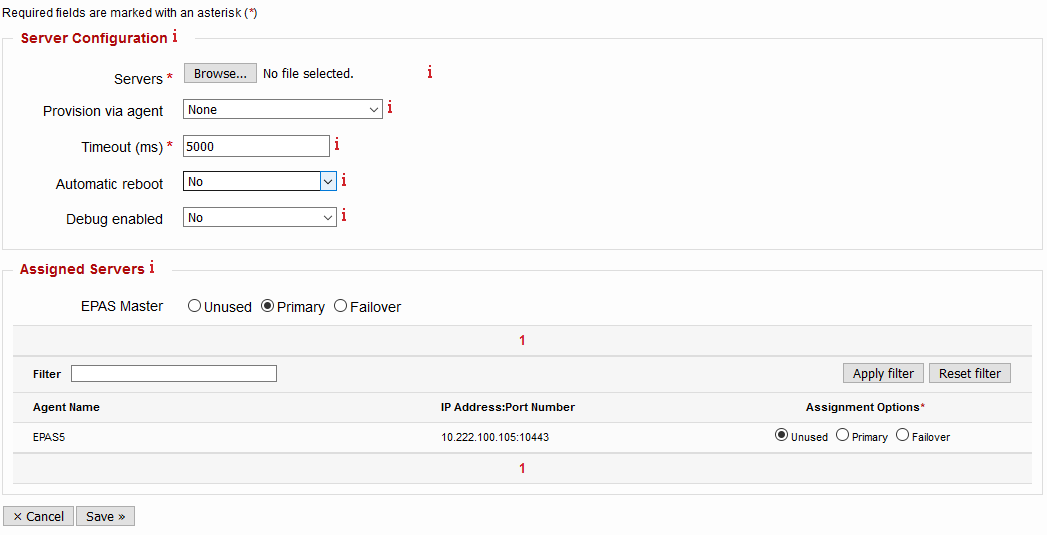
It is also possible to use a Tab-separated values file to define multiple servers at once, with common configuration parameters (provision via agent, timeout, debug enabled, load balancing configuration). The function is available by pressing the Add Multiple Servers button. Upload a TSV file containing the system parameters, and set the common ones.
The format of the TSV file is (replace <TAB> by real tab character):
SYSTEM_NAME<TAB>SYSTEM_IP
The SYSTEM_NAME and SYSTEM_IP values need to be unique, independently, across the entire Enforcer installation.
Provisioning
The provisioning action is used once per server (e.g. Windows 2008 r2), and performs the following actions:
- Connects to the server using the credentials specified in the Server Groups configuration page.
- Validates that the server is a valid Windows workstation or server.
- Transfers the password filter DLLs to the target system.
- Generates an RSA 2048 bit private key which is then used to sign a Certificate Signing Request.
- Transfers the Certificate Signing Request to the EPAS MASTER, which creates a certificate for mutual authentication.
- Ensures the certificate is present on the system, and the Windows server is able to validate the EPAS Enforcer certificate.
- Ensures the proper ACLs are set-up for the notification attribute.
- Loads the password filter DLL after the next reboot.
- (Optional) Performs a server reboot, depending on the parametrization.
To provision a server, use the Provision action in the Servers page. The provisioning window displays log data about the state of the provisioning process, and whether provisioning has succeeded. Below is an example provisioning log:
Info: Wed Sep 25 20:42:45 CEST 2019
Info: Using a domain account, for domain sub1 ...
Info: The temporary share is ADMIN$ ...
Info: Connecting to server 10.222.224.145 with username sub1/Administrator ...
Info: Using TCP port 445 with fallback to TCP port 139 ...
Info: Authentication successful
Info: Calling WMI, using RPC on TCP port 135 ...
Info: WMI/EXEC connecting to server allocated dynamic RPC TCP port: 18113 ...
Info: Still processing data (init), retry 1 of 60, wait 1 second(s) ...
Info: Product type is Windows Server
Info: The system volume is "c:\" and the Windows directory is "windows"
Info: The target ID is EPAS-PQCLI-F3CD30ACF687A6A7665258EF0FAE9A60
Info: Installing EPAS filter...
Info: Completing enrollment...

The provisioning has PASSED.
Provisioning multiple servers can be done using the Provision All action in the Servers page.
Tip
It is recommended to set the Automatic reboot parameter to No and provision all the servers (Windows workstations or servers) one after the other, after they are all added to the Servers list.
Once all provisioning processes have ended with a PASSED status, perform manual rolling restarts of the systems, in order to active the Enforcer password filter DLL on all the systems.
This methodology allows Enforcer provisioning the systems, without loading (and therefore activating) the password filter DLLs, which allows EPAS operators and / or IT operations to troubleshoot any provisioning issues (if any).
Deprovisioning
The deprovisioning operation performs all the necessary steps in order to uninstall the Enforcer password filter from a server (Windows workstations or servers). At the end of the deprovisioning process, the password filter DLL is deleted, any configuration is unloaded, and certificates removed. It is strongly recommended to reboot the target system after a succesful deprovisioning, in order to unload the password filter DLL.
Use the deprovisioning procedure in the following scenarios:
- uninstalling EPAS Enforcer from a system
- before systems are phased out of use (e.g. decomissioned)
- if the notification attribute needs to be changed after Enforcer has already been deployed (not recommended, not supported by vendor)
To deprovision a server, use the Deprovision action in the Servers page. The deprovisioning window displays log data about the state of the deprovisioning process, and whether deprovisioning has succeeded. Below is an example log:
Info: Wed Sep 25 20:36:40 CEST 2019
Info: Using a domain account, for domain sub1 ...
Info: The temporary share is ADMIN$ ...
Info: Connecting to server 10.222.224.145 with username sub1/Administrator ...
Info: Using TCP port 445 with fallback to TCP port 139 ...
Info: Authentication successful
Info: Calling WMI, using RPC on TCP port 135 ...
Info: WMI/EXEC connecting to server allocated dynamic RPC TCP port: 18113 ...
Info: Still processing data (init), retry 1 of 60, wait 1 second(s) ...
Info: Still processing data (init), retry 1 of 60, wait 1 second(s) ...
Info: Product type is Windows Server
Info: The system volume is "c:\" and the Windows directory is "windows"
Info: Uninstalling EPAS filter...
Info: Complete, reboot the target computer manually.
Warning: Wait until the server has rebooted before using the EPAS filter!
Info: Operation completed successfully

The deprovisioning has PASSED.
Deprovisioning multiple servers can be done using the Deprovision All action in the Servers page.
Redeployment
The Redeploy operation allows an operator the push the latest changes to the configuration of the Server Group, Server or Enforcer AGENT/MASTER assignment to an already deployed Enforcer system. In addition, the password filter DLL is updated (in case a newer version exists). This operation is useful for:
- Pushing a new password filter DLL version to the server.
- A reconfiguration of Enforcer or, specifically, the server definition (e.g. migrating AGENT systems to new IP addresses, unavailability of all AGENT systems) is required.
- Reloading the Server Group/Server configuration (Default Policy, Debug, Timeout, etc.) without a password change.
Info
If upgrading the password filter DLL using the Redeploy action, a reboot of the target system is required for the new version to be loaded.
To redeploy a server, use the Redeploy action in the Servers page. The window displays log data about the state of the redeployment process, and whether redeployment has succeeded.