Policy Assignment
For granular password policies, depending on the group membership of a user, or depending on the organizational unit of a user, password policies have to be assigned to one or more group objects.
Policy mappings are links between Enforcer password policies and user groups or organizational units. Each Server Group has zero or more policy mappings. In Enforcer, policy mappings serve as a method to assign one or more user groups to have different password policies set. Several use cases exist:
- Administrative or privileged accounts often need a more secure password policy, to prevent complex attacks from compromising passwords. As such, administrative passwords can be made to have unique passwords across the environment, prevent dictionary words from being used and check for a high structural entropy (password strength) value.
- Some departments or user groups are located remotely, and notification should be performed in a different language than the server group default.
- Some business users' functionality is considered privileged (e.g. access to HR systems) and therefore should have a more stricter password policy.
- If a user is a member of two different groups, with two different password policies, a priority should exist on which password policy is actually enforced.
Add policy mapping
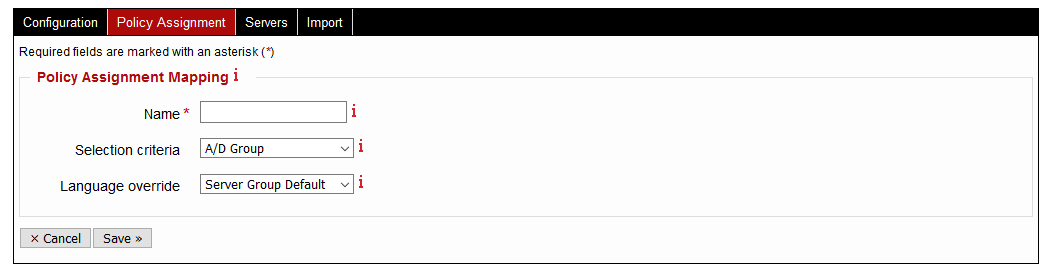
To assign a policy, navigate to the Enforcer » Server Groups » Policy Assignment tab, and click the New Mapping button.
The parameters for the policy mapping creation are referenced below.
| Parameter | Description | Type |
|---|---|---|
| Name | A name for the policy mapping, usually suggesting the group(s) or access level it is targeting | Dynamic 1 |
| Selection criteria | Defines the type of objects that this policy mapping will be able to assign policies to. For Active Directory, this can be any of A/D Group or A/D Location (OU) or A/D Location Prefix.For Microsoft Windows Local Accounts, this can be any defined built-in group. For NetIQ SSPR, this can be a mapping of LDAP attribute name and value. For Linux, this can be one or more user-defined group names or group IDs (GID) |
Static 2 |
| Language override | Defines the notification language for failed password changes, for any users in the groups selected. | Dynamic 1 |
Use the Save button to save the policy mapping.
Configure policy mapping
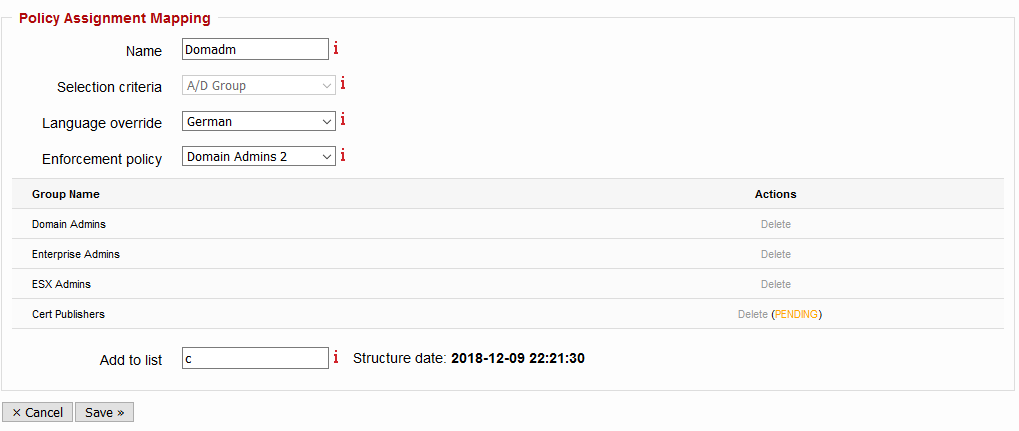
Once a policy mapping has been created, policies can be assigned to one or more groups. Use the Configure action in the Policy Assignments page to configure any existing policy mapping. In addition to the parameters present in the initial definition process, other items are present:
- Enforcement Policy: select any password policy defined in the Policies step. Alternatively, to disable any password enforcement policies for user groups, select the No policy (disabled) option.
- Groups or containers: use the Add to list form field to search for existing groups (or A/D locations). The field triggers an autocomplete functionality, which shows the 7 most relevant results. Narrow down the search suggestions by entering additional characters from the group names. Click the item once it has been identified, to add it to the list of groups for which the policy is applied to.
- Structure date: indicates the time the last complete group structure was imported from this domain / system. To update the structure (e.g. after adding new groups which need to be assigned different policies), use the Import procedure.
Use the Save button to persist the changes.
Policy assignment priority
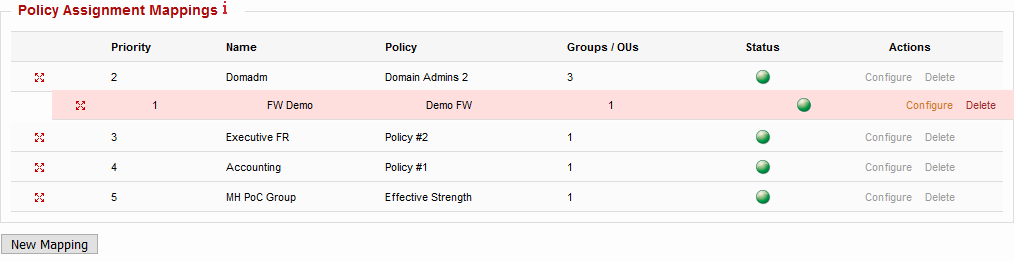
In most enterprise systems, a single user account can be a member of multiple groups, each having its own privilege level. As an example, an HR user can also be a domain administrator. The policy assignment priority allows the EPAS Enforcer administrator to decide which password enforcement policy is applied, when the user is part of multiple groups.
This is performed by using the drag and drop gesture, whenever visiting the Policy Assignment page. The top-most policy mapping will have priority. If a user is matched in both the first and the second policy mapping, only the policy assigned via the first mapping will be enforced.
Tip
Make sure privileged accounts (e.g. Administrators, Domain Administrators) are always the first policy mapping in the listing page. Order the other policy mappings by the sensitivity level (and therefore stronger password enforcement policies).
-
Dynamic parameters can also be changed after the policy mapping has been defined, and has immediate effect on the next password change. ↩↩
-
Static parameters can no longer be changed after the policy mapping has been defined. Therefore, to change a static parameter, it is required to create a new policy mapping. ↩